

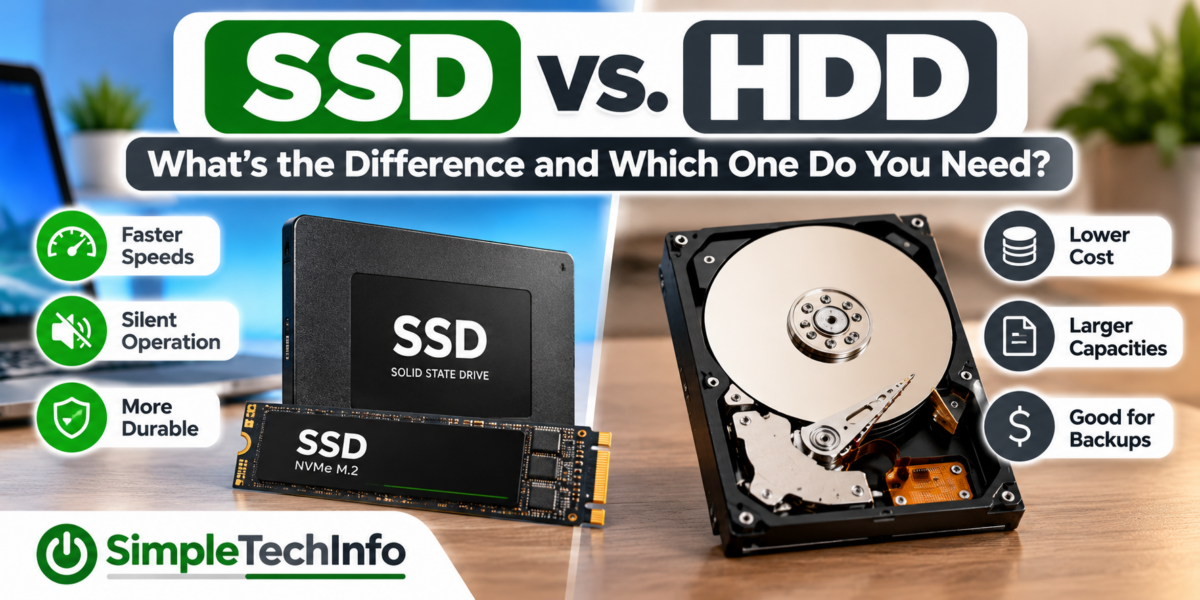
If you’re shopping for a computer or looking for more storage, you’ll probably come across two terms: SSD and HDD.
Both are used to store your files, programs, photos, and Windows itself, but they work very differently.
The simple answer is that SSDs are much faster and are usually the better choice for your main computer drive, while HDDs can still be useful when you need a large amount of storage at a lower cost.
Let’s look at the differences and help you decide which one makes sense for your computer.
What Is a Storage Drive?
Before comparing SSDs and HDDs, it helps to understand what they actually do.
Your computer’s storage drive holds information such as:
- Windows
- Installed programs
- Documents
- Photos
- Videos
- Downloads
- Games
- Music
Unlike RAM, the information on your storage drive remains there when you shut down your computer.
For example, if you save a photo today and turn your computer off, that photo should still be there the next time you turn it on.
What Is an HDD?
HDD stands for Hard Disk Drive.
Hard drives have been used in computers for decades.
Inside an HDD are spinning magnetic disks called platters. A small mechanical arm moves across those disks to read and write information.
You can think of it a little like a very fast record player, although the technology is obviously different.
Because an HDD relies on moving mechanical parts, it takes time for the drive to locate and access information.
This is one reason older computers with traditional hard drives can sometimes feel slow.
What Is an SSD?
SSD stands for Solid State Drive.
Unlike a hard drive, an SSD doesn’t contain spinning disks or mechanical arms.
Instead, it stores information using flash memory.
Because there are no moving parts involved in finding your data, an SSD can access information much more quickly than a traditional hard drive.
That difference can have a noticeable effect on how responsive your computer feels.
SSD vs. HDD: What’s the Difference?
Here’s a simple comparison:
| Feature | SSD | HDD |
|---|---|---|
| Speed | Much faster | Slower |
| Moving parts | No | Yes |
| Noise | Silent | May make some noise |
| Durability | Generally more resistant to bumps | More vulnerable to physical shock |
| Power usage | Generally lower | Generally higher |
| Cost per GB | Usually higher | Usually lower |
| Large-capacity storage | More expensive | Usually cheaper |
| Best use | Windows, programs, everyday computing | Large files, backups, inexpensive storage |
For most everyday computers, an SSD is the better choice for the primary drive.
How Much Faster Is an SSD?
The exact difference depends on the drives being compared, but the biggest thing you’ll probably notice isn’t a number on a specification sheet.
It’s how the computer feels.
Replacing an older hard drive with an SSD can improve things such as:
- Windows startup times
- Opening programs
- Loading files
- Installing updates
- Searching through files
- Restarting the computer
- General responsiveness
An SSD won’t make your processor faster or give you more RAM, but it can dramatically reduce the amount of time your computer spends waiting for information to be read from storage.
That’s why replacing an HDD with an SSD is often one of the most noticeable upgrades you can make to an older computer.
Will an SSD Make My Computer Start Faster?
Usually, yes.
Windows needs to load a large amount of information from your storage drive when the computer starts.
An SSD can retrieve that information much faster than a traditional HDD.
If your computer currently uses an older hard drive, upgrading to an SSD can significantly improve startup and loading times.
However, storage isn’t the only thing that affects startup performance.
Too many startup programs, limited RAM, software problems, and older hardware can also slow down a computer.
If startup time is your main problem, check out our guide on How to Make Windows 11 Start Faster for other things you can try.
Does an SSD Give You More Storage?
Not necessarily.
SSD and HDD describe the type of drive, not how much information it can hold.
For example, you could have:
- 500 GB SSD
- 1 TB SSD
- 2 TB SSD
- 1 TB HDD
- 2 TB HDD
- 4 TB HDD
A 1 TB SSD and a 1 TB HDD provide roughly the same advertised storage capacity.
The SSD is simply a different—and much faster—way of storing that information.
What Do GB and TB Mean?
Storage capacity is usually advertised in gigabytes (GB) or terabytes (TB).
As a simple rule:
1 TB is approximately 1,000 GB.
Common drive sizes include:
- 256 GB
- 500 or 512 GB
- 1 TB
- 2 TB
- 4 TB and larger
You’ll usually see slightly less usable space inside Windows than the number advertised on the drive. This is normal and is partly due to differences in how manufacturers and operating systems calculate and display storage capacity, along with formatting and system use.
How Much Storage Do You Need?
The right amount depends on what you keep on your computer.
256 GB
This can work for basic web browsing, email, Microsoft Office, and light file storage.
However, space can become limited quickly if you store lots of photos, videos, games, or large programs.
500 GB or 512 GB
This is a comfortable starting point for many everyday users.
There’s usually enough room for Windows, common applications, documents, and a reasonable collection of personal files.
1 TB
A 1 TB drive provides much more breathing room.
It’s a good option if you store a lot of photos, install large programs or games, or simply don’t want to worry as much about running out of space.
2 TB or More
Larger drives can make sense for people storing large photo libraries, videos, games, backups, or other large files.
Why Are HDDs Still Used?
If SSDs are faster, you might wonder why anyone still buys a hard drive.
The answer is cost and capacity.
Hard drives can provide a large amount of storage for relatively little money.
For example, someone who needs several terabytes to store:
- Video files
- Photo archives
- Backups
- Media collections
- Large project files
may find an HDD to be an economical option.
Speed isn’t equally important for every type of storage.
If you’re simply storing old photos or backup files that you rarely access, paying extra for SSD-level performance may not always be necessary.
When Should You Choose an SSD?
An SSD is usually the better choice for:
- Your Windows installation
- Your main computer drive
- Laptops
- Frequently used programs
- Games
- Files you access regularly
- Upgrading an older computer that still uses an HDD
If you’re buying a new computer today, I would generally recommend choosing one with an SSD as its main drive.
When Does an HDD Still Make Sense?
An HDD can still be useful for:
- Large backup drives
- Photo and video archives
- Storing large amounts of data inexpensively
- Files you don’t access frequently
- Secondary storage
You also don’t necessarily have to choose one or the other.
Some desktop computers use both.
For example:
1 TB SSD: Windows, programs, and frequently used files
4 TB HDD: Photos, videos, backups, and archived files
This gives you the speed of an SSD along with inexpensive high-capacity storage.
Are All SSDs the Same?
No.
This is where SSD terminology can become a little confusing.
Two common terms you’ll encounter are SATA and NVMe.
SATA SSD
A SATA SSD uses an older storage interface that was also commonly used for hard drives.
A SATA SSD is still dramatically faster than a traditional HDD for everyday use.
Older computers may also be more likely to support a SATA SSD upgrade.
NVMe SSD
NVMe SSDs typically connect through an M.2 slot on the computer’s motherboard and can provide much higher speeds than SATA SSDs.
They are common in newer laptops and desktop computers.
An M.2 NVMe drive looks more like a small circuit board than the rectangular drives many people picture when they think about computer storage.
Is NVMe Better Than SATA?
From a performance standpoint, NVMe drives can be significantly faster.
But that doesn’t mean every user needs the fastest NVMe SSD available.
For basic tasks such as:
- Browsing the internet
- Using Microsoft Office
- Checking email
- Watching videos
- Managing photos
both SATA and NVMe SSDs can provide a responsive experience.
The difference between an HDD and any decent SSD is often much more noticeable to an everyday user than the difference between a SATA SSD and a very fast NVMe SSD.
Can I Upgrade an HDD to an SSD?
Often, yes.
Many older desktop and laptop computers that use a traditional hard drive can be upgraded to an SSD.
However, compatibility depends on the computer.
Before buying a drive, you’ll need to determine:
- What type of drive your computer currently uses
- What drive connections it supports
- What physical drive sizes will fit
- Whether it supports SATA, M.2, NVMe, or a combination
- How you plan to move Windows and your files to the new drive
Some newer laptops have storage that is difficult or impossible for the average user to replace.
Check your computer manufacturer’s documentation before purchasing an upgrade.
Do I Have an SSD or HDD?
Windows provides several ways to check.
One simple method is Task Manager.
- Right-click the Start button.
- Select Task Manager.
- Select Performance.
- Select your disk from the list.
Windows may identify the drive as an SSD or HDD.
If you have multiple drives, check each one.
You can also search for Defragment and Optimize Drives from the Start menu. The Media type column will normally identify your drives as solid state drives or hard disk drives.
SSD vs. RAM: What’s the Difference?
Storage and RAM are often confused, but they perform different jobs.
Your SSD or HDD provides long-term storage.
RAM provides temporary working memory while the computer is running.
Think of your storage drive as a filing cabinet and RAM as your desk.
The filing cabinet holds everything when you’re not using it. Your desk holds the things you’re actively working with.
Adding more RAM doesn’t give you the same benefit as replacing a slow hard drive with an SSD, and installing an SSD doesn’t replace the need for enough RAM.
If you’re unsure how much RAM your computer has, see our guide on How to Check How Much RAM Your PC Has.
What About External SSDs and HDDs?
Both SSDs and HDDs are also available as external drives that connect through USB or another external connection.
External SSDs
External SSDs are useful when you want:
- Fast portable storage
- Faster file transfers
- A drive without mechanical moving parts
- Storage that’s easier to carry around
External HDDs
External hard drives are useful when you want:
- Lots of storage for less money
- A backup drive
- Long-term storage for photos and videos
- Storage that mostly stays in one location
For a drive that will sit on your desk and hold backups, an HDD may be perfectly adequate.
For a drive you’ll frequently carry around and use for large file transfers, an SSD may be worth the additional cost.
Is an SSD More Reliable Than an HDD?
SSDs have an advantage because they don’t contain the moving mechanical parts found inside hard drives.
That makes them generally more resistant to bumps and movement.
However, any storage drive can fail.
SSDs can fail.
Hard drives can fail.
External drives can be lost, damaged, or corrupted.
That’s why an SSD or HDD should never be the only place you keep irreplaceable files.
Important photos, documents, and other files should always be backed up somewhere else.
Should You Replace a Working HDD?
It depends on how you use the computer.
If your computer works well and the HDD is only being used for storing files, you may not need to replace it.
But if Windows itself is installed on an HDD and the computer feels slow even after you’ve tried basic performance improvements, moving Windows to an SSD can make a substantial difference.
Before upgrading, make sure the rest of the computer is worth investing in.
A very old computer with an outdated processor, limited RAM, or unsupported software may have other limitations that an SSD won’t solve.
SSD vs. HDD: Which Should You Buy?
For most people, the answer is straightforward.
Choose an SSD if:
- It’s your main computer drive.
- Windows will be installed on it.
- You want faster startup and loading.
- You’re upgrading an older computer.
- You use the drive frequently.
- You want portable storage that’s more resistant to bumps.
Choose an HDD if:
- You need several terabytes of inexpensive storage.
- You’re storing backups.
- You’re archiving photos and videos.
- Speed isn’t especially important.
- The drive will mostly stay in one location.
Consider Both if:
You want fast everyday performance and lots of inexpensive storage.
An SSD for Windows and applications combined with an HDD for large files can provide the advantages of both.
Bottom Line
For most modern computers, an SSD is the better choice for your primary storage drive.
It’s faster, silent, has no mechanical moving parts, and can make Windows and applications feel significantly more responsive.
An HDD still has a place, especially when you need several terabytes of storage without spending as much money.
If you’re buying a new computer, look for one with an SSD.
If you’re trying to make an older computer faster and it still uses a traditional hard drive, upgrading to an SSD may be one of the most noticeable improvements you can make.
And if you simply need a large drive to store backups, photos, or videos, a traditional HDD may still be the more economical choice.