

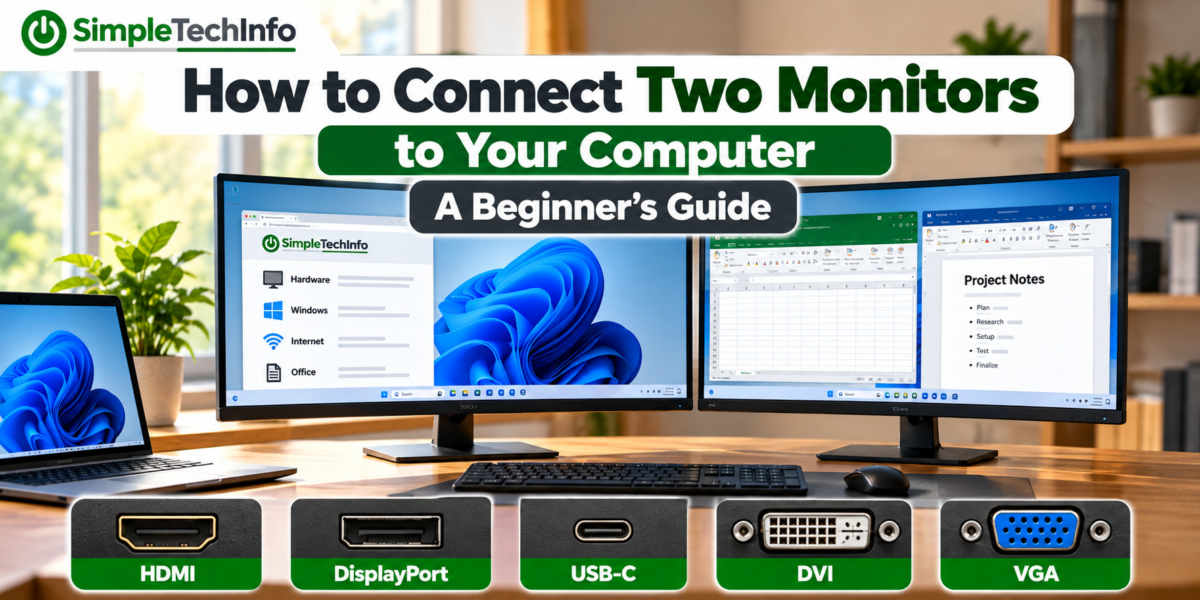
Using two monitors can give you much more room to work.
You might keep your email open on one screen while working on a document on the other, compare two spreadsheets side by side, or watch a video while using another program.
The good news is that connecting two monitors is usually fairly simple—as long as your computer has the right connections.
In this guide, we’ll explain what you need, where to connect your monitors, and how to set everything up in Windows 11.
What Do You Need for Two Monitors?
Before connecting anything, you’ll need:
- A computer that supports multiple displays
- Two monitors
- The appropriate video cables
- Available video connections on your computer
Common monitor connections include:
- HDMI
- DisplayPort
- USB-C
- DVI
- VGA
You don’t necessarily need both monitors to use the same type of connection.
For example, one monitor could connect using HDMI while the other uses DisplayPort.
If you’re not sure which connections you have, see our guide on What Are HDMI, DisplayPort, DVI, and VGA?
Step 1: Check the Video Ports on Your Computer
Start by looking at the available video connections on your computer.
Desktop Computers
A desktop computer may have several HDMI or DisplayPort connections on the back.
However, there’s something important to watch for.
If your computer has a dedicated graphics card, you should normally connect both monitors to the graphics card, rather than connecting one to the graphics card and one to the motherboard.
The graphics card connections are usually located lower on the back of the computer in a horizontal row.
Motherboard video connections are usually higher up near the USB, Ethernet, and audio ports.
If you’re already using one monitor, look at where its cable is connected. If it’s plugged into the graphics card, look for another available HDMI or DisplayPort connection beside it.
Laptop Computers
Laptops usually have fewer video connections.
You might have:
- One HDMI port
- One or more USB-C ports
- A Thunderbolt port
- Mini DisplayPort on some older models
Connecting one external monitor is usually straightforward if you have HDMI.
Connecting two external monitors may require USB-C, Thunderbolt, a docking station, or another adapter.
The exact capabilities depend on your laptop.
Step 2: Check the Connections on Your Monitors
Next, look at the back or underside of each monitor.
You may find connections such as:
HDMI
A very common connection for monitors, TVs, laptops, and desktop computers.
DisplayPort
Common on desktop monitors and graphics cards.
USB-C
Some newer monitors can receive video through USB-C. Certain USB-C monitors can also charge a compatible laptop through the same cable.
DVI
Common on older monitors and computers.
VGA
An older analog connection that is still found on some older equipment.
Ideally, match an available connection on your computer with a connection on the monitor.
For example:
Computer HDMI → Monitor HDMI
or:
Computer DisplayPort → Monitor DisplayPort
Step 3: Connect the First Monitor
If you already have one monitor connected, you can skip this step.
Otherwise, connect a video cable between the computer and your first monitor.
Make sure the cable is fully inserted at both ends.
Turn on the monitor.
If the monitor has multiple inputs, you may need to select the correct one using the monitor’s buttons or menu.
For example, if you connected the computer using HDMI, make sure the monitor is set to the appropriate HDMI input.
Step 4: Connect the Second Monitor
Connect another video cable from a second video output on your computer to the second monitor.
For example, your setup might look like:
Monitor 1: HDMI
Monitor 2: DisplayPort
That’s completely fine.
The monitors don’t have to use matching connections.
Turn on the second monitor and select the correct input if necessary.
Windows will often detect the second display automatically.
Step 5: Open Display Settings in Windows 11
Once both monitors are connected, right-click an empty area of your desktop.
Select:
Display settings
You should see boxes representing your monitors.
They may be labeled:
1 and 2
If Windows doesn’t show both monitors, scroll to the Multiple displays section and look for the option to detect another display.
Step 6: Identify Your Monitors
If you’re not sure which screen is Monitor 1 and which is Monitor 2, click:
Identify
Windows will display a large number on each monitor.
This makes it easy to tell which display corresponds to each box in Settings.
Step 7: Arrange the Monitors
This is one of the most important parts of setting up two monitors.
At the top of Display settings, you’ll see boxes representing each display.
Drag those boxes so they match how the monitors are physically positioned on your desk.
For example, if Monitor 2 is physically to the right of Monitor 1, arrange them like this:
[ 1 ] [ 2 ]
If the second monitor is on the left:
[ 2 ] [ 1 ]
You can also adjust them vertically if one monitor sits higher than the other.
Why does this matter?
Windows uses this arrangement to determine how your mouse moves between screens.
If Windows thinks Monitor 2 is on the left when it’s actually on the right, you’ll have to move your mouse in the wrong direction to reach it.
Arrange the displays until moving your mouse between them feels natural.
Step 8: Choose Extend These Displays
Windows gives you several ways to use multiple monitors.
Look for the Multiple displays setting.
You’ll typically have options such as:
Duplicate These Displays
Both monitors show the same thing.
This can be useful for presentations, but it doesn’t give you additional desktop space.
Extend These Displays
Your desktop stretches across both monitors.
This allows you to move windows and programs from one screen to the other.
This is the option most people want for a normal two-monitor setup.
Show Only on 1
Only Monitor 1 is used.
Show Only on 2
Only Monitor 2 is used.
For a typical dual-monitor workstation, select:
Extend these displays
A Faster Way: Windows + P
You can also quickly change how Windows uses multiple displays by pressing:
Windows + P
A menu will appear with options including:
- PC screen only
- Duplicate
- Extend
- Second screen only
Choose Extend to use both monitors as one larger desktop.
This shortcut is especially useful if Windows suddenly starts duplicating your displays instead of extending them.
Step 9: Choose Your Main Monitor
Your main display is where Windows normally places things such as your primary desktop and certain applications.
To choose it:
- Open Settings → System → Display.
- Select the monitor you want to use as your main screen.
- Find the Multiple displays section.
- Select Make this my main display.
Most people choose the monitor directly in front of them as the main display.
Your second monitor can then be used for email, web browsers, reference material, videos, or other programs.
Adjust the Resolution
Each monitor should normally use its recommended resolution.
In Display settings, select a monitor and find:
Display resolution
Windows will usually mark the best option as:
Recommended
For example, a standard 1080p monitor commonly uses:
1920 × 1080
A 1440p monitor might use:
2560 × 1440
A 4K monitor commonly uses:
3840 × 2160
Using the recommended resolution usually provides the sharpest image.
You can configure each monitor separately.
Can You Use Two Different Monitors?
Yes.
Your monitors don’t have to be identical.
You can use different:
- Brands
- Screen sizes
- Resolutions
- Refresh rates
- Connection types
For example, you could use a 27-inch DisplayPort monitor alongside a 24-inch HDMI monitor.
Windows can handle different resolutions and screen sizes.
However, moving windows between monitors with very different resolutions or scaling settings may sometimes look a little unusual.
What If Your Computer Only Has One HDMI Port?
This is a very common situation.
Having only one HDMI port doesn’t necessarily mean you can only use one monitor.
Look for other video connections.
For example, your computer might have:
1 HDMI + 1 DisplayPort
You could connect:
Monitor 1 → HDMI
Monitor 2 → DisplayPort
You can also use an appropriate adapter if your monitor doesn’t have the same connection as your computer.
Can You Use an HDMI Splitter for Two Monitors?
This is an important distinction.
A basic HDMI splitter usually duplicates the same image onto multiple screens.
It generally does not give you two independent Windows desktops.
If your goal is:
Monitor 1 shows one program
and
Monitor 2 shows another program
you need a setup that supports multiple independent display outputs.
Don’t buy a basic HDMI splitter expecting it to create an extended desktop.
What If Your Laptop Only Has One HDMI Port?
You may still be able to connect two external monitors.
Check whether your laptop has a USB-C or Thunderbolt port that supports video output.
You may be able to connect:
Monitor 1 → HDMI
and:
Monitor 2 → USB-C adapter → HDMI or DisplayPort
Another option is a docking station.
Can USB-C Connect to a Monitor?
Sometimes.
This is where USB-C can be confusing.
USB-C describes the shape of the connector, but not every USB-C port supports the same features.
Some USB-C ports support video output through technologies such as DisplayPort Alternate Mode or Thunderbolt.
Others may only support USB data and charging.
So don’t assume that every USB-C port can connect to a monitor.
Check your computer manufacturer’s specifications before purchasing an adapter or docking station.
What Is a Docking Station?
A docking station connects to your laptop and provides additional connections.
Depending on the dock, these may include:
- HDMI
- DisplayPort
- USB
- Ethernet
- Audio
- Memory card readers
- Laptop charging
Some docks support two or more external monitors.
This can be especially convenient if you use a laptop at a desk.
Instead of connecting several cables every time you sit down, you may only need to connect one USB-C or Thunderbolt cable to the dock.
However, your laptop and docking station both need to support the number and resolution of monitors you want to use.
Can You Use Your Laptop Screen and Two Monitors?
Possibly.
That would give you three displays:
- Laptop screen
- External Monitor 1
- External Monitor 2
Whether this works depends on your laptop’s graphics hardware, available connections, docking station, and supported display configuration.
Some laptops can easily run several displays, while others have limitations.
Check the manufacturer’s specifications if you’re unsure.
Can You Close the Laptop and Use Two External Monitors?
Yes, on many laptops.
You may need to change what Windows does when you close the laptop lid.
Search Windows for:
Choose what closing the lid does
You can then configure the laptop so it doesn’t automatically go to sleep when the lid is closed while connected to power.
If you change this setting, be mindful of ventilation. Make sure your laptop can still cool itself properly when the lid is closed.
What If the Second Monitor Says “No Signal”?
If the monitor powers on but displays No Signal, start with the basics.
Check that:
- The monitor is turned on.
- The video cable is fully connected.
- The monitor is using the correct input.
- The cable is connected to the correct port on the computer.
- Windows detects the second display.
Try disconnecting and reconnecting the cable.
If possible, test another video cable or another port.
If you’re using an adapter or docking station, temporarily remove it from the setup if possible to help determine where the problem is occurring.
For more detailed troubleshooting, see our guide on Computer Turns On but No Display? How to Troubleshoot Your Monitor.
What If Windows Doesn’t Detect the Second Monitor?
Open:
Settings → System → Display
Find the Multiple displays section and try the option to detect another display.
If Windows still doesn’t recognize it:
- Restart the computer.
- Turn the monitor off and back on.
- Reconnect the video cable.
- Try another cable.
- Try another video output.
- Check for Windows updates.
- Update your graphics drivers if necessary.
- Test the monitor with another computer or device.
If one monitor works from a particular computer port but the other doesn’t, that can help narrow down whether the problem is the monitor, cable, adapter, or computer connection.
Why Does My Mouse Move the Wrong Way Between Monitors?
This usually means your display arrangement doesn’t match the physical position of your monitors.
Go to:
Settings → System → Display
Drag the numbered monitor boxes so they match your actual desk setup.
If Monitor 2 sits to the right of Monitor 1, make sure Windows shows Monitor 2 on the right.
Click Apply if prompted.
Your mouse should now move naturally from one screen to the other.
Why Is Everything Bigger on One Monitor?
Your monitors may be using different scaling settings.
Windows scaling makes text, icons, and other interface elements larger or smaller without necessarily changing the monitor’s resolution.
Go to:
Settings → System → Display
Select the affected monitor and look for:
Scale
Common settings include:
- 100%
- 125%
- 150%
Higher-resolution monitors often use higher scaling so text remains easy to read.
Different monitors can use different scaling settings.
Do Two Monitors Slow Down Your Computer?
For normal everyday tasks, most reasonably modern computers that support multiple displays can run two monitors without a noticeable performance problem.
However, additional displays do require your graphics hardware to do more work.
This can matter more when you’re:
- Gaming
- Editing video
- Running several high-resolution displays
- Using high refresh rates
- Running graphics-intensive applications
For typical office work, web browsing, email, and general Windows use, two monitors usually aren’t a problem on a computer designed to support them.
A Simple Dual-Monitor Setup
For a desktop computer, a typical setup might look like:
Computer DisplayPort → Monitor 1 DisplayPort
Computer HDMI → Monitor 2 HDMI
Then in Windows:
Settings → System → Display → Extend these displays
That’s all you need in many cases.
For a laptop, a typical setup might look like:
Laptop HDMI → Monitor 1
Laptop USB-C → HDMI adapter → Monitor 2
Or:
Laptop USB-C/Thunderbolt → Docking Station → Monitor 1 + Monitor 2
The best setup depends on the connections and display capabilities of your particular computer.
Quick Dual-Monitor Checklist
Before buying cables or adapters, check:
- How many monitors your computer supports.
- Which video outputs your computer has.
- Which inputs your monitors have.
- Whether your USB-C port supports video.
- Whether you need HDMI, DisplayPort, USB-C, or an adapter.
- Whether you want to duplicate or extend your desktop.
Once everything is connected:
- Open Settings → System → Display.
- Click Identify.
- Arrange the monitors to match your desk.
- Select Extend these displays.
- Choose your main display.
- Check the resolution and scaling of each monitor.
Bottom Line
Connecting two monitors to your computer is usually straightforward once you know which video connections are available.
For most desktop computers, you’ll connect each monitor to a separate HDMI or DisplayPort output.
For laptops, you may need to combine HDMI with USB-C, Thunderbolt, an adapter, or a docking station.
Once the monitors are connected, open:
Settings → System → Display
Then arrange your screens and select Extend these displays to create a larger Windows desktop.
Most importantly, check your computer’s connections and display capabilities before buying adapters, cables, or docking stations. A few minutes of checking compatibility can save you from buying equipment you don’t need.