

If you’ve ever worked with a long Excel spreadsheet, you’ve probably encountered this problem:
You scroll down several hundred rows and suddenly can’t remember what each column represents.
Was Column C the customer name? The order number? The invoice date?
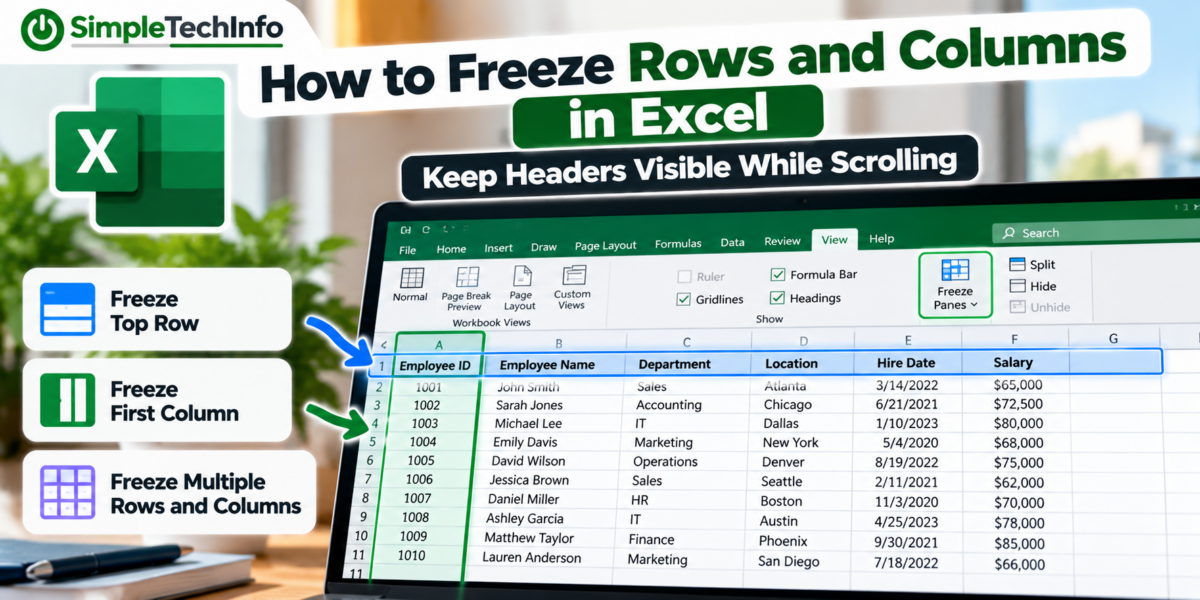
Microsoft Excel’s Freeze Panes feature solves this problem by keeping certain rows or columns visible while the rest of your spreadsheet scrolls.
You can freeze the top row, the first column, or even multiple rows and columns at the same time.
Here’s how it works.
What Does Freeze Panes Do in Excel?
Freeze Panes allows part of your spreadsheet to remain visible while you scroll through the rest of it.
For example, imagine you have a spreadsheet like this:
| Employee ID | Employee Name | Department | Location | Hire Date |
|---|---|---|---|---|
| 1001 | John Smith | Sales | Atlanta | 3/14/2022 |
| 1002 | Sarah Jones | Accounting | Chicago | 6/21/2021 |
| 1003 | Michael Lee | IT | Dallas | 1/10/2023 |
The first row contains the column headings.
As you scroll down through hundreds of employees, Row 1 eventually disappears from the screen.
If you freeze the top row, those headings remain visible regardless of how far down you scroll.
This makes large spreadsheets much easier to read.
How to Freeze the Top Row in Excel
This is the most common use of Freeze Panes.
If Row 1 contains your column headings:
- Open your Excel spreadsheet.
- Select the View tab.
- Click Freeze Panes.
- Select Freeze Top Row.
That’s it.
Now scroll down your spreadsheet.
Row 1 should remain visible at the top of the worksheet while the other rows move underneath it.
When Should You Freeze the Top Row?
Freeze Top Row works particularly well for spreadsheets containing lists or tables.
For example:
- Employee lists
- Customer lists
- Inventory spreadsheets
- Expense reports
- Sales reports
- Project trackers
- Contact lists
Any spreadsheet where the first row describes the information underneath it can benefit from keeping that row visible.
How to Freeze the First Column in Excel
You can do the same thing horizontally.
Imagine Column A contains employee names while the rest of the spreadsheet contains monthly performance information.
As you scroll to the right, the employee names disappear.
To keep Column A visible:
- Select the View tab.
- Click Freeze Panes.
- Select Freeze First Column.
Now scroll horizontally to the right.
Column A should remain visible.
When Is Freeze First Column Useful?
This is helpful when Column A identifies each row.
For example, Column A might contain:
- Employee names
- Product names
- Customer names
- Account numbers
- Project names
- Dates
Keeping that information visible makes it easier to tell which row you’re looking at when working with a wide spreadsheet.
How to Freeze Both a Row and Column
This is where Freeze Panes becomes especially useful—and a little less obvious.
Suppose you want:
Row 1 to remain visible when scrolling down.
and:
Column A to remain visible when scrolling right.
You can freeze both at the same time.
The important part is selecting the correct cell first.
If you want to freeze Row 1 and Column A, select:
Cell B2
Then go to:
View → Freeze Panes → Freeze Panes
Now both Row 1 and Column A should remain visible as you move around the spreadsheet.
Why Do You Select B2?
Excel freezes everything:
Above the selected cell
and:
To the left of the selected cell
If you select B2:
- Row 1 is above B2.
- Column A is to the left of B2.
So Excel freezes both.
This is the key to understanding how the regular Freeze Panes option works.
The Simple Freeze Panes Rule
Here’s the easiest rule to remember:
Select the cell immediately below the rows and immediately to the right of the columns you want to freeze.
For example:
| You Want to Freeze | Select This Cell |
|---|---|
| Row 1 | A2 |
| Rows 1 and 2 | A3 |
| Column A | B1 |
| Columns A and B | C1 |
| Row 1 and Column A | B2 |
| Rows 1–2 and Column A | B3 |
| Row 1 and Columns A–B | C2 |
| Rows 1–2 and Columns A–B | C3 |
Once you’ve selected the appropriate cell, go to:
View → Freeze Panes → Freeze Panes
Understanding this rule makes it much easier to create custom frozen areas.
How to Freeze Multiple Rows
You aren’t limited to freezing only the first row.
Suppose your spreadsheet has:
Row 1: Report title
Row 2: Column headings
and you want both rows to remain visible.
Select:
Cell A3
Then go to:
View → Freeze Panes → Freeze Panes
Because Rows 1 and 2 are above A3, Excel freezes both.
Now they’ll remain visible as you scroll down.
Another Example
Suppose you want to freeze the first four rows.
Select:
A5
Then choose:
View → Freeze Panes → Freeze Panes
Everything above Row 5 will remain frozen.
How to Freeze Multiple Columns
The same idea works with columns.
Suppose Columns A and B contain:
Column A: Employee ID
Column B: Employee Name
and you want both visible while scrolling through the rest of the spreadsheet.
Select:
Cell C1
Then go to:
View → Freeze Panes → Freeze Panes
Because Columns A and B are to the left of C1, both will remain visible.
How to Freeze Multiple Rows and Columns at the Same Time
You can combine both techniques.
Suppose you want to freeze:
Rows 1 and 2
and:
Columns A and B
Select:
Cell C3
Why C3?
Rows 1 and 2 are above it.
Columns A and B are to its left.
Then choose:
View → Freeze Panes → Freeze Panes
Excel will keep those rows and columns visible while the rest of the worksheet can scroll.
How to Unfreeze Rows and Columns
If you no longer want anything frozen:
- Go to the View tab.
- Select Freeze Panes.
- Choose Unfreeze Panes.
Your spreadsheet will return to normal scrolling.
You can then select a different cell and create a new Freeze Panes setup if necessary.
Freeze Top Row vs. Freeze Panes
Excel gives you several options under the Freeze Panes menu, and the names can be confusing at first.
Freeze Top Row
Automatically freezes Row 1.
You don’t need to select a particular cell first.
Use this when your column headings are in the first row.
Freeze First Column
Automatically freezes Column A.
Use this when you want the first column to remain visible while scrolling horizontally.
Freeze Panes
This is the more flexible option.
Excel uses your currently selected cell to determine which rows and columns should remain visible.
Use this when you want to freeze:
- Multiple rows
- Multiple columns
- A row and column together
- A custom combination of rows and columns
For most basic spreadsheets, Freeze Top Row may be all you need.
What If My Headers Aren’t in Row 1?
Sometimes your spreadsheet might have a title or other information above the actual column headings.
For example:
Row 1: 2026 Annual Sales Report
Row 2: Last Updated: October 2026
Row 3: Product | Region | Sales | Expenses | Profit
If you choose Freeze Top Row, Excel will freeze only Row 1.
That doesn’t help much because your actual column headings are in Row 3.
Instead, select:
A4
Then choose:
View → Freeze Panes → Freeze Panes
Rows 1 through 3 will remain visible.
However, consider whether you actually need all three rows visible while scrolling.
If the report title and date aren’t important while you’re working with the data, reorganizing the worksheet so the important column headings are easier to keep visible may provide a cleaner experience.
How Can You Tell If Panes Are Frozen?
Excel normally displays a line separating the frozen area from the scrollable area.
For example, if you’ve frozen Row 1, you may notice a line underneath it.
If you’ve frozen Column A, you’ll see a dividing line to its right.
Try scrolling.
If the appropriate rows or columns remain in place, Freeze Panes is active.
Freeze Panes vs. Split: What’s the Difference?
Excel also has a feature called Split, which can look similar to Freeze Panes.
They aren’t the same thing.
Freeze Panes keeps specific rows or columns permanently visible while you scroll through the worksheet.
Split divides the worksheet window into separate sections that can be scrolled independently.
For most people who simply want their column headings to remain visible, Freeze Panes is the easier and more appropriate option.
Does Freeze Panes Change the Spreadsheet?
Freeze Panes changes how you view the worksheet. It doesn’t change the values in your cells or move your data around.
Your formulas, text, numbers, and other information remain where they were.
This makes Freeze Panes a safe feature to experiment with.
If you don’t like the result, simply choose:
View → Freeze Panes → Unfreeze Panes
and try again.
Does Freeze Panes Affect Printing?
Freezing a row keeps it visible on your screen while scrolling.
It does not automatically mean that the row will appear at the top of every printed page.
If you have a spreadsheet that prints across multiple pages and want your column headings repeated on each page, you’ll need a different Excel feature called Print Titles.
In Excel, look under:
Page Layout → Print Titles
This lets you specify rows or columns that should repeat on printed pages.
So remember:
Freeze Panes = keeps headings visible on your screen
Print Titles = repeats headings on printed pages
Can You Freeze a Row in the Middle of a Spreadsheet?
Freeze Panes always freezes the rows above the selected cell.
For example, selecting A11 and using Freeze Panes will freeze:
Rows 1 through 10
It won’t freeze only Row 10 while allowing Rows 1 through 9 to scroll normally.
The frozen area always starts from the top of the worksheet.
The same principle applies to columns: the frozen area starts at Column A and continues to the column immediately before your selected cell.
A Practical Example
Imagine you’re working with a sales spreadsheet containing:
Column A: Order Number
Column B: Customer
Column C: Product
Column D: Region
Column E: Salesperson
Column F: Sale Amount
Column G: Order Date
The spreadsheet contains 5,000 orders.
As you scroll down, you want the column names to remain visible.
As you scroll right, you also want the order number to remain visible.
To accomplish this:
- Select B2.
- Go to View.
- Select Freeze Panes.
- Select Freeze Panes again.
Excel will freeze:
Row 1
and:
Column A
Now you can move through thousands of records while keeping the important reference information visible.
Which Freeze Option Should You Use?
For most spreadsheets, the decision is simple.
Your headings are in Row 1:
Use Freeze Top Row.
Important information is in Column A:
Use Freeze First Column.
You need both Row 1 and Column A:
Select B2, then use Freeze Panes.
You need multiple rows or columns:
Select the cell below and to the right of everything you want frozen, then use Freeze Panes.
Quick Freeze Panes Checklist
If you just need a quick reminder:
Freeze Row 1
View → Freeze Panes → Freeze Top Row
Freeze Column A
View → Freeze Panes → Freeze First Column
Freeze Row 1 + Column A
Select B2 → View → Freeze Panes → Freeze Panes
Freeze Rows 1–2 + Columns A–B
Select C3 → View → Freeze Panes → Freeze Panes
Remove Frozen Panes
View → Freeze Panes → Unfreeze Panes
Bottom Line
Freeze Panes is one of Excel’s simplest but most useful features when working with large spreadsheets.
If you only need to keep your column headings visible, use:
View → Freeze Panes → Freeze Top Row
For a custom setup, remember one simple rule:
Select the cell below the rows and to the right of the columns you want to freeze.
Then choose:
View → Freeze Panes → Freeze Panes
Once you understand that rule, you can easily keep important headings, names, IDs, or other reference information visible no matter how large your spreadsheet becomes.