

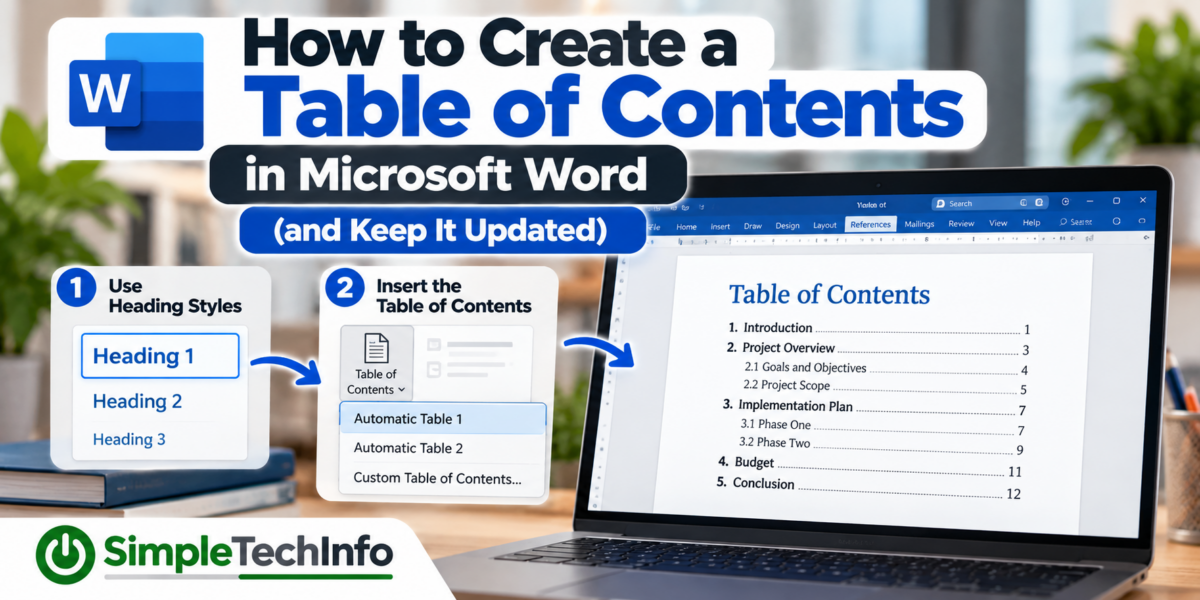
If you’re creating a long report, proposal, manual, or other business document in Microsoft Word, a table of contents can make it much easier for readers to find what they’re looking for.
You could type a table of contents manually, but there’s a much better way.
Microsoft Word can automatically create a table of contents based on the headings in your document. Even better, Word can update the table when you add new sections or when page numbers change.
The key is setting up your document correctly first.
Here’s how to do it.
What Is an Automatic Table of Contents?
A table of contents lists the major sections of a document along with the page where each section begins.
For example:
Introduction ………………………….. 1
Project Overview …………………… 2
Requirements ………………………… 4
Implementation ……………………… 7
Conclusion ………………………….. 12
Word can generate this list automatically.
Instead of typing each section name and page number yourself, Word looks for headings throughout your document and builds the table for you.
If something changes later, you can update the table instead of rewriting it.
Step 1: Use Heading Styles in Your Document
This is the most important part of creating an automatic table of contents.
Word needs to know which text represents your document’s headings.
Simply making text bold, larger, or a different color doesn’t necessarily tell Word that it’s a heading.
Instead, use Word’s built-in Heading styles.
How to Apply a Heading Style
Select the heading in your document.
Then go to:
Home → Styles
Choose the appropriate style, such as:
- Heading 1
- Heading 2
- Heading 3
Word will recognize text using these styles as part of your document’s structure.
What’s the Difference Between Heading 1, Heading 2, and Heading 3?
Think of heading styles as levels in an outline.
Heading 1
Use Heading 1 for the main sections of your document.
For example:
Project Overview
Budget
Implementation Plan
Conclusion
Heading 2
Use Heading 2 for subsections within a Heading 1 section.
For example:
Implementation Plan
- Hardware Requirements
- Software Requirements
- Training
In this example, Implementation Plan could use Heading 1 while Hardware Requirements, Software Requirements, and Training use Heading 2.
Heading 3
Use Heading 3 when you need another level beneath Heading 2.
For example:
Implementation Plan — Heading 1
Hardware Requirements — Heading 2
Employee Computers — Heading 3
Network Equipment — Heading 3
Most basic business documents only need Heading 1 and Heading 2.
Step 2: Choose Where the Table of Contents Will Go
Once your headings are set up, place your cursor where you want the table of contents to appear.
It’s usually placed near the beginning of the document.
A common document structure might look like:
Cover Page
Table of Contents
Introduction
Main Content
Conclusion
You may want to give the table of contents its own page.
To start a new page, you can insert a page break instead of repeatedly pressing Enter.
Place your cursor where the new page should begin and press:
Ctrl + Enter
This inserts a page break.
Step 3: Insert the Table of Contents
Place your cursor on the page where you want the table.
Then go to:
References → Table of Contents
Word will display several options.
Choose one of the built-in Automatic Table options.
Word will create the table using the headings in your document.
You should now see your section names along with their corresponding page numbers.
Why Should You Use an Automatic Table?
An automatic table of contents has several advantages over typing one yourself.
Word can automatically:
- Find your headings
- Add page numbers
- Create indentation for subsections
- Add dot leaders between headings and page numbers
- Update page numbers when your document changes
- Add new sections when you create new headings
For a document that may change over time, this can save a lot of work.
Step 4: Update the Table of Contents
Your table of contents doesn’t always update immediately when you change the document.
For example, imagine that Project Overview originally begins on page 3.
You add several paragraphs earlier in the document, causing Project Overview to move to page 4.
The table of contents may still show page 3 until you update it.
Fortunately, updating it is easy.
Click inside the table of contents.
Then select:
Update Table
You may be given two choices:
Update Page Numbers Only
Choose this when your headings haven’t changed but their page numbers have.
Update Entire Table
Choose this when you’ve:
- Added a new heading
- Removed a heading
- Renamed a heading
- Changed your document structure
If you’re unsure which option to use, Update entire table is usually the safest choice.
A Good Habit Before Sending a Document
Always update your table of contents one final time before:
- Printing the document
- Saving the final PDF
- Emailing it to someone
- Uploading it for review
- Sending it to a client
Small edits can move content onto different pages without you realizing it.
Updating the table before creating the final version helps ensure the page numbers are correct.
Can I Change How My Headings Look?
Yes.
You don’t have to accept Word’s default appearance for Heading 1, Heading 2, and Heading 3.
For example, perhaps your company document uses:
- Dark blue Heading 1 text
- Smaller gray Heading 2 text
- A specific font
- Particular spacing before each section
Instead of manually formatting every heading, you can modify the Heading style itself.
In the Styles section of the Home tab, right-click the heading style you want to change and select:
Modify
You can then adjust formatting such as:
- Font
- Font size
- Color
- Bold or italic formatting
- Alignment
- Paragraph spacing
Once you modify the style, Word can apply those changes consistently throughout the document.
This gives you the appearance you want while still allowing Word to recognize the text as headings.
Why Styles Are Better Than Manually Formatting Headings
Imagine you have a 30-page report with 15 section headings.
You’ve manually made every heading:
16-point, bold, dark blue
Later, you decide all section headings should be:
18-point, bold, green
If every heading was formatted manually, you may have to change them one at a time.
If they all use Heading 1, you can modify the Heading 1 style once and Word can update them throughout the document.
Styles make long documents much easier to maintain.
They also help Word understand the structure of your document for features such as the table of contents and Navigation Pane.
How to See Your Document’s Structure
Heading styles provide another useful benefit.
Go to:
View → Navigation Pane
A panel should appear on the side of Word.
Select the Headings section if necessary.
You’ll see an outline of your document based on your Heading styles.
This gives you an easy way to review the organization of a long document before creating your table of contents.
The Navigation Pane also makes it easier to move around long documents without constantly scrolling.
Can You Click Items in the Table of Contents?
Yes.
Word’s automatic table of contents can include links that allow readers to jump directly to sections of the document.
This is especially useful when the document is being read electronically rather than printed.
The links can also remain useful when the document is exported to PDF, depending on how the PDF is created and the options used.
This makes an automatic table of contents useful even when page numbers aren’t especially important.
How to Customize the Table of Contents
Word also lets you customize which heading levels appear.
Go to:
References → Table of Contents → Custom Table of Contents
From here, you can adjust options such as:
- Whether page numbers appear
- Whether page numbers are right-aligned
- The characters between headings and page numbers
- How many heading levels are displayed
For example, your document might contain Heading 1, Heading 2, and Heading 3 sections, but you may only want the table of contents to show Heading 1 and Heading 2.
Reducing the number of displayed levels can make a large table of contents easier to read.
How Many Heading Levels Should You Include?
For most business documents, I recommend keeping the table of contents relatively simple.
A table showing:
Heading 1
and
Heading 2
is often enough.
Including Heading 3, Heading 4, and additional levels can make the table cluttered, especially in a long document.
The document itself can still use those heading levels even if you don’t display all of them in the table of contents.
How to Remove a Table of Contents
If you no longer need the table, don’t simply highlight everything and press Delete.
Instead, click inside the table of contents and go to:
References → Table of Contents → Remove Table of Contents
Word will remove the automatic table.
Your headings and the rest of your document will remain unchanged.
Should the Table of Contents Have a Page Number?
It can, but this depends on the type of document you’re creating.
Some simple documents number every page normally.
More formal reports may use:
- No page number on the cover
- Roman numerals for introductory pages
- Regular numbers beginning with the main content
For example:
Cover — No number displayed
Table of Contents — i
Executive Summary — ii
Main Report — Page 1
Creating this type of numbering requires section breaks and separate page-number settings.
If you’re creating a more advanced business document, see our guide on How to Add and Format Headers and Footers in Microsoft Word, which explains page numbers, section breaks, and different headers and footers.
Quick Checklist
Before creating your table of contents:
- Apply Heading 1 to major sections.
- Apply Heading 2 to subsections.
- Use Heading 3 only when another level is necessary.
- Review your document structure using the Navigation Pane.
- Place your cursor where the table should appear.
- Go to References → Table of Contents.
- Choose an automatic table.
- Update the table after making changes.
- Update it again before creating your final PDF or sending the document.
Bottom Line
The easiest way to create a table of contents in Microsoft Word is to let Word build it automatically.
The most important step happens before you insert the table: organize your document using Word’s built-in Heading styles.
Once your headings are set up, go to:
References → Table of Contents
and select an automatic table.
When your document changes, use Update Table to refresh the headings and page numbers.
Learning to use Heading styles and automatic tables of contents can save a significant amount of time when working with reports, proposals, manuals, and other long documents—and makes them much easier to maintain when something changes.
Having trouble? See our Table of Contents Troubleshooting guide!