

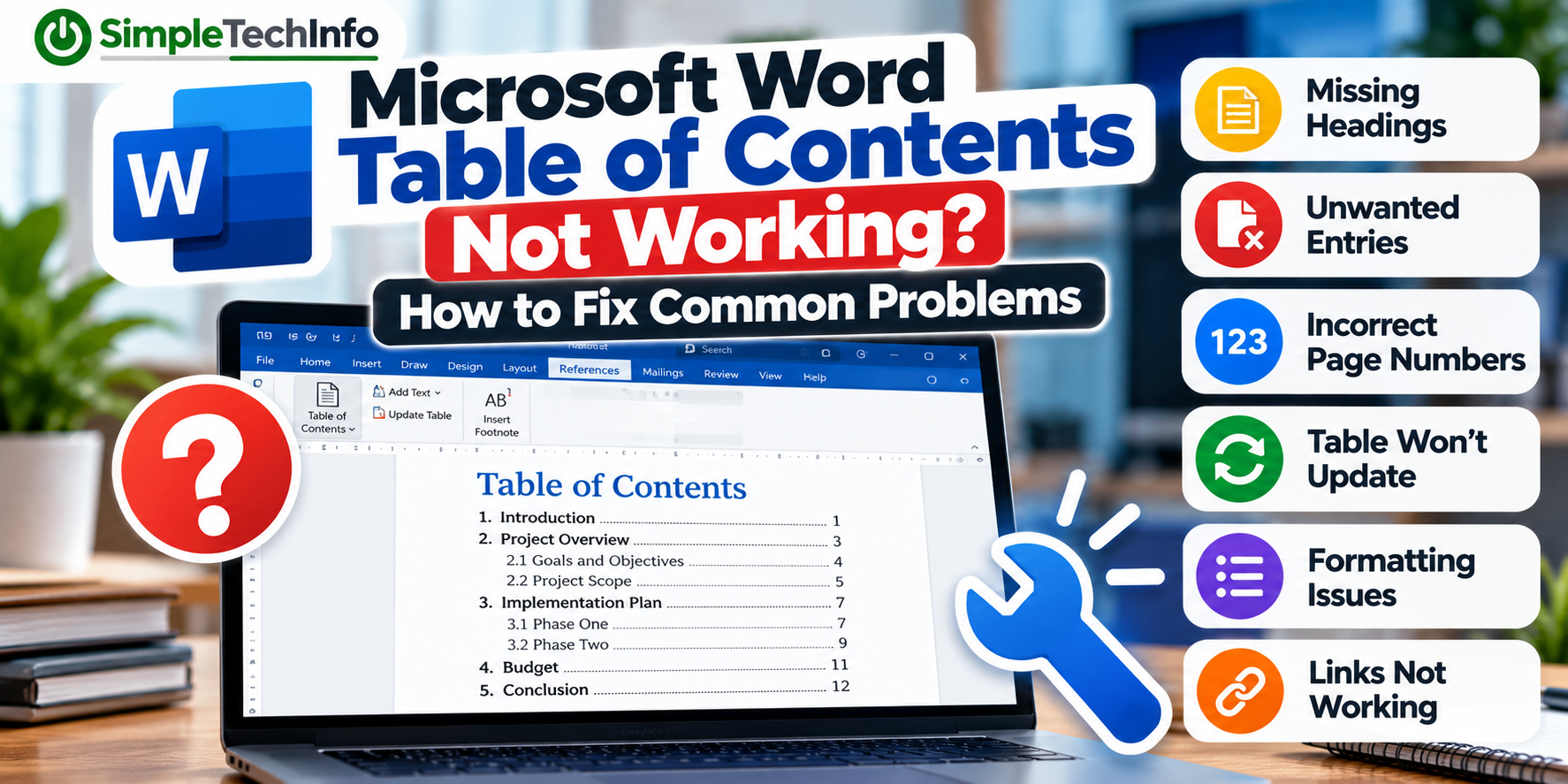
Microsoft Word can automatically create a table of contents, but sometimes it doesn’t behave the way you expect.
A heading might be missing. An old section may still appear. Page numbers might be wrong. Or you might update the table only to discover that your changes have disappeared.
Fortunately, most table of contents problems are caused by a few common issues and can be fixed without recreating your entire document.
This guide covers some of the most common Microsoft Word table of contents problems and how to fix them.
If you want to read up on how to make a table of contents, check out our guide here!
Before You Start: Update the Entire Table
Before troubleshooting anything else, try updating the table of contents.
Click anywhere inside your table of contents and select:
Update Table
Word should give you two choices:
- Update page numbers only
- Update entire table
Choose:
Update entire table
This tells Word to check the headings throughout your document and rebuild the table.
If you’ve recently added, removed, renamed, or reorganized sections, updating the entire table may be all you need.
If that doesn’t solve the problem, find your issue below.
Problem 1: A Heading Is Missing From the Table of Contents
One of the most common problems is having a section title in your document that doesn’t appear in the table of contents.
For example, your document might contain:
Project Timeline
It looks just like your other headings, but it doesn’t appear in the table.
The first thing to check is the heading’s Style.
Check the Heading Style
Select the missing heading.
Go to:
Home → Styles
Look at which style is selected.
For a standard automatic table of contents, the section will usually need to use a heading style such as:
- Heading 1
- Heading 2
- Heading 3
If the text is using Normal or another regular text style, Word may not recognize it as a heading.
Apply the appropriate Heading style.
Then return to your table of contents and choose:
Update Table → Update entire table
The heading should now appear.
Why Making Text Bold Isn’t Enough
This is an easy mistake to make.
You might format a section title with:
- Bold text
- A larger font
- A different color
- Extra spacing
Visually, it looks like a heading.
But Word doesn’t necessarily know that.
Word’s automatic table of contents relies on the structure of your document, particularly its Heading styles.
That’s why using Heading 1, Heading 2, and Heading 3 is better than manually formatting each section title.
Problem 2: Heading 3 Doesn’t Appear in the Table of Contents
What if Heading 1 and Heading 2 appear correctly, but Heading 3 doesn’t?
Your table of contents may be configured to display only a certain number of heading levels.
Go to:
References → Table of Contents → Custom Table of Contents
Look for the setting that controls how many levels are shown.
If your table is configured to show only 2 levels, Word will normally include Heading 1 and Heading 2 but leave out Heading 3.
Increase the number of displayed levels if you want additional headings included.
Keep in mind that displaying too many heading levels can make a table of contents difficult to read.
For many business documents, Heading 1 and Heading 2 are enough.
Problem 3: Text That Isn’t a Heading Appears in the Table of Contents
Sometimes the opposite happens.
A normal sentence or paragraph unexpectedly appears in your table of contents.
This often means a Heading style was accidentally applied to that text.
Select the unwanted text in your document.
Then go to:
Home → Styles
Check whether it’s using something like:
Heading 1
or:
Heading 2
If the text isn’t supposed to be a heading, change it to the appropriate style, such as Normal.
Then update the entire table of contents.
The unwanted entry should disappear.
Problem 4: An Old Heading Is Still in the Table of Contents
You deleted a section from your document, but its heading is still listed in the table of contents.
This usually means the table hasn’t been fully updated.
Click inside the table and select:
Update Table → Update entire table
Don’t choose Update page numbers only.
Updating only the page numbers doesn’t rebuild the list of headings.
Choosing Update entire table tells Word to check which headings currently exist in the document.
Problem 5: The Page Numbers Are Wrong
Your headings are correct, but the page numbers in the table of contents don’t match the actual pages.
This commonly happens after editing a document.
For example, adding a few paragraphs to page 3 could push every section after it onto a different page.
The table of contents may continue displaying the old page numbers until it’s updated.
Click inside the table and select:
Update Table → Update page numbers only
You can also choose Update entire table if you’ve made other structural changes.
It’s a good idea to update the table of contents immediately before printing, sending, or exporting your final document.
Problem 6: Page Numbers Start Over or Look Wrong
Sometimes the problem isn’t actually the table of contents.
The page numbering in the document itself may be incorrect.
For example, your document might show:
Introduction — Page 1
Project Overview — Page 2
Budget — Page 1
If the document’s page numbering restarts unexpectedly, the table of contents may simply be reporting those page numbers correctly.
This can happen when your document contains multiple section breaks.
Double-click the header or footer near the page where the numbering changes and inspect the page-number settings.
You may need to change whether numbering:
- Continues from the previous section
- Starts at a particular number
Section breaks can also affect headers, footers, and page numbers in other ways.
For more help, see our guide on How to Add and Format Headers and Footers in Microsoft Word.
Problem 7: The Table of Contents Won’t Update
If you click the table and it doesn’t seem to update, first make sure you’re working with an automatic table of contents.
A manually typed table isn’t connected to the headings in your document.
If you created the table yourself by typing:
Introduction …….. 1
Project Overview …….. 3
Conclusion …….. 10
Word has nothing to automatically update.
Consider replacing it with an automatic table by going to:
References → Table of Contents
and selecting one of Word’s automatic options.
Try Updating the Field
An automatic table of contents is a Word field.
You can also try clicking inside the table and pressing:
F9
On some keyboards, particularly laptops, you may need to use the Fn key along with F9.
This tells Word to update the selected field.
Problem 8: I Typed Something Into the Table and It Disappeared
This can be confusing if you don’t realize how an automatic table of contents works.
Suppose you click directly inside the table and manually change:
Project Overview
to:
Project Summary
It may appear to work.
But the next time you update the table, Word may change it back.
That’s because an automatic table of contents is generated from your document’s headings.
Instead of editing the table itself, find the actual heading in the document:
Project Overview
Change it to:
Project Summary
Then update the entire table.
The table of contents should now display the new name.
A Good Rule to Remember
Edit the document, not the table of contents.
Let Word regenerate the table based on your document.
Problem 9: My Table of Contents Formatting Changed
Perhaps your table of contents suddenly looks different after you update it.
The font, spacing, indentation, or other formatting may not look the way you want.
This can happen if you manually formatted individual entries inside the table.
Because Word generates the table automatically, manual changes may be replaced when the table is updated.
For consistent formatting, modify the styles Word uses for the table of contents rather than formatting each entry individually.
Word uses styles such as:
- TOC 1
- TOC 2
- TOC 3
These correspond to different levels within the table.
You can modify these styles to control how your table of contents looks.
Customize the Table Instead of Individual Entries
Go to:
References → Table of Contents → Custom Table of Contents
From there, you can access additional options for controlling the appearance of your table.
Depending on your version of Word, you can modify the styles associated with the different TOC levels.
This is a better approach than manually changing every line.
Problem 10: The Dots Between the Heading and Page Number Are Missing
The row of dots between a heading and its page number is called a tab leader or dot leader.
For example:
Project Overview …………………… 4
If those dots are missing, open:
References → Table of Contents → Custom Table of Contents
Look for the Tab leader option.
You can choose the style you prefer.
You can also check whether page numbers are set to align on the right side of the table.
Problem 11: The Table of Contents Is Too Long
A table of contents can become difficult to use if every small subsection appears.
For example, including Heading 1 through Heading 4 in a large document could result in several pages of entries.
You may not need that much detail.
Go to:
References → Table of Contents → Custom Table of Contents
Reduce the number of heading levels displayed.
For example, changing the table to show 2 levels can give you a cleaner structure containing your main headings and their immediate subsections.
Your lower-level headings can remain in the document. They simply won’t appear in the table of contents.
Problem 12: The Indentation Looks Wrong
A well-organized table of contents normally uses indentation to show the relationship between sections.
For example:
1. Project Overview
1.1 Goals
1.2 Requirements
If everything appears at the same level, first check the styles used by your actual headings.
Your major sections should normally use Heading 1.
Subsections should use Heading 2.
Sections underneath those might use Heading 3.
If every heading in your document uses Heading 1, Word sees them all as being at the same level.
Correct the heading structure and update the entire table.
Problem 13: Clicking an Entry Doesn’t Take Me to the Heading
Automatic tables of contents can include hyperlinks that allow readers to jump directly to a section of the document.
Depending on your version and settings in Word, you may need to hold Ctrl while clicking a table-of-contents entry to follow its link.
If the links aren’t behaving as expected, make sure you’re using an automatic table of contents rather than one that was manually typed.
You can recreate an automatic table through:
References → Table of Contents
Clickable navigation is especially useful for long documents that will primarily be read on a computer rather than printed.
Problem 14: The Table of Contents Looks Different After Saving as a PDF
Before creating your PDF, update the entire table of contents one final time.
Then review:
- Heading names
- Page numbers
- Indentation
- Line wrapping
- Page breaks
- Hyperlinks
The final PDF can sometimes paginate slightly differently depending on how it is created, the fonts being used, or other document settings.
For best results, use Word’s built-in PDF export or save-as-PDF functionality rather than relying on an unrelated conversion website.
After creating the PDF, open it and check the table of contents before sending the file.
For an important report or proposal, don’t assume the PDF looks exactly like the Word document without checking it.
Problem 15: The Table of Contents Is on the Wrong Page
Sometimes editing earlier parts of the document can move your table of contents or cause content to appear on the same page.
Avoid positioning the table by repeatedly pressing Enter.
Instead, use a page break.
Place your cursor before the content that should begin on a new page and press:
Ctrl + Enter
This creates an actual page break that Word can maintain as the document changes.
A typical report might use:
Cover Page
Table of Contents
Main Document
with page breaks separating each major part.
The Navigation Pane is a useful troubleshooting tool because it shows how Word interprets the structure of your document.
Go to:
View → Navigation Pane
Then look at the Headings section.
If a heading you expected to see isn’t there, check its Heading style.
If normal text unexpectedly appears in the Navigation Pane, check whether it accidentally has a Heading style applied.
The Navigation Pane can help you find structural problems before you even look at the table of contents.
Should You Delete the Table and Start Over?
Usually, no.
Most table of contents problems can be fixed by correcting your Heading styles or changing the table’s settings.
After correcting the document, choose:
Update Table → Update entire table
However, if the table has been heavily modified manually or its formatting has become difficult to repair, removing and recreating it may be faster.
To remove it, go to:
References → Table of Contents → Remove Table of Contents
Then insert a new automatic table.
Removing the table does not delete the headings or content in your document.
A Simple Troubleshooting Order
If your table of contents isn’t working correctly, try these steps in order:
- Click inside the table and choose Update entire table.
- Check that your section titles use Heading 1, Heading 2, or Heading 3.
- Open the Navigation Pane to check Word’s document structure.
- Check how many heading levels your table is configured to display.
- Verify that the document’s actual page numbers are correct.
- Avoid manually editing entries inside the automatic table.
- Review the Custom Table of Contents settings.
- If necessary, remove the table and insert a new automatic one.
In many cases, the problem will be solved within the first few steps.
Bottom Line
Most Microsoft Word table of contents problems come down to two things:
Heading styles and updating the table.
If a heading is missing, check whether it uses the correct Heading style.
If an old heading remains or the page numbers are wrong, choose:
Update Table → Update entire table
And if changes you make directly inside the table keep disappearing, remember that an automatic table of contents is generated from your document.
Make the change to the original heading first, then update the table.
Once you understand that relationship, troubleshooting Word’s table of contents becomes much easier.