

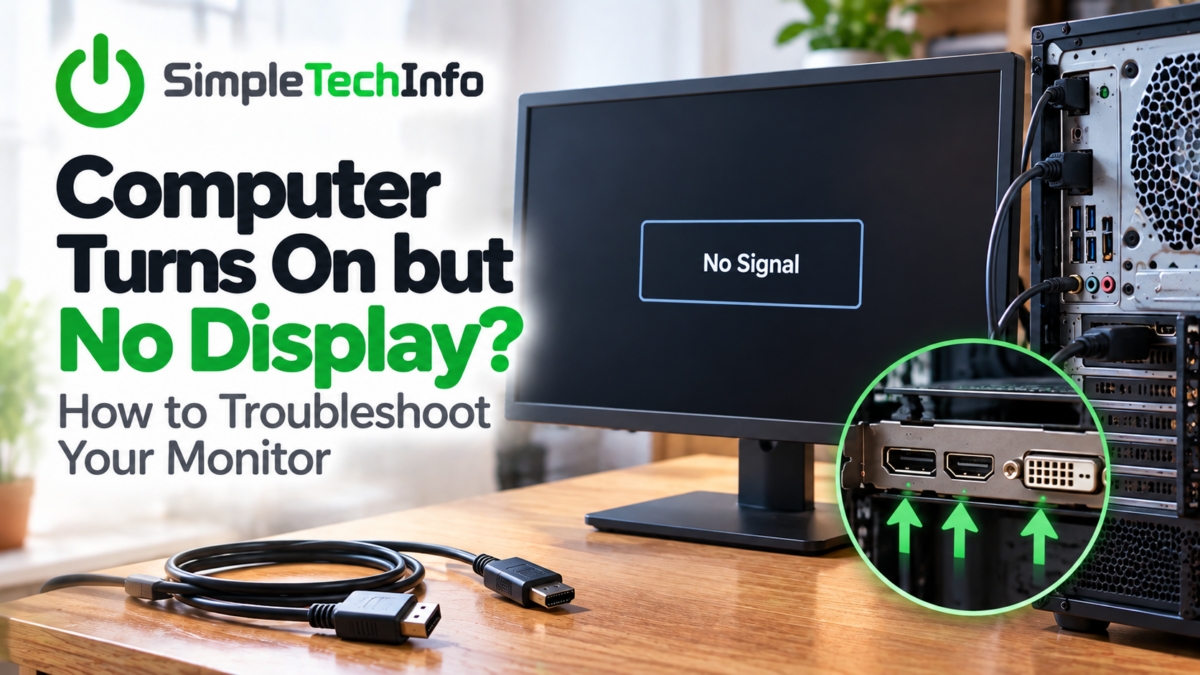
You press the power button on your desktop computer and hear the fans start, but nothing appears on the monitor. Maybe the screen stays completely black, or the monitor displays a message such as “No Signal.”
Before assuming your computer or monitor is broken, there are several simple things you can check.
Start with the easiest steps below and work your way down.
1. Make Sure the Monitor Is Turned On
It sounds obvious, but start by checking the monitor itself.
Look for a power light somewhere along the front, bottom, or back of the monitor.
If you don’t see one:
- Press the monitor’s power button.
- Make sure its power cable is firmly connected.
- Check the connection at the wall outlet or power strip.
- If possible, try another outlet.
If the monitor displays its logo or a “No Signal” message, that’s actually useful information. It means the monitor is receiving power and is capable of displaying an image.
The problem may instead be the connection between your computer and monitor.
2. Check the Video Cable
Your monitor will usually connect to your computer using an HDMI, DisplayPort, DVI, or VGA cable.
For more information on the differences in these cables, check our article here.
Check both ends of the cable.
One end should be firmly connected to the monitor and the other to the desktop computer.
Unplug the cable and reconnect it on both ends to make sure it’s fully seated.
If you’re using DisplayPort, make sure the connector is completely inserted. Some DisplayPort cables also have a locking mechanism that needs to be released before removing the cable.
Look for obvious damage to the cable or connectors as well.
3. Make Sure the Monitor Is Using the Correct Input
Many monitors have more than one video connection.
For example, your monitor might have:
- HDMI 1
- HDMI 2
- DisplayPort
- DVI
If your computer is connected through HDMI but the monitor is set to DisplayPort, you may see a black screen or “No Signal” message.
Use the buttons on your monitor to open its menu and find a setting labeled something like:
Input
Source
or
Input Source
Select the connection you’re actually using.
If you’re not sure, try each available input and wait a few seconds between them.
4. Check Where the Cable Is Connected to the Computer
This is an extremely common problem with desktop computers.
Some desktops have two different areas where a monitor can be connected.
One set of video ports may be located near the USB, Ethernet, and audio connections on the motherboard.
Another set may be farther down the back of the computer on a dedicated graphics card.
If your computer has a dedicated graphics card, your monitor will usually need to be connected to the graphics card rather than the motherboard.
Look at the back of your computer.
The motherboard connections are usually grouped together near the top.
Graphics card connections are typically located lower down and run horizontally across one of the expansion slots.
If your monitor is currently connected to the motherboard, try connecting it to the graphics card instead.
This is especially worth checking if you recently moved the computer or disconnected everything to rearrange your desk.
5. Restart the Computer
If everything appears to be connected correctly, restart the computer.
Hold the computer’s power button until it completely shuts down.
Wait about 10 seconds and turn it back on.
Watch the monitor closely during startup.
If you briefly see the manufacturer’s logo or Windows startup screen before the display goes black, the problem may be different from a computer that never produces an image at all.
6. Try Another Video Cable
A cable can fail even if it looks perfectly normal from the outside.
If you have another compatible HDMI or DisplayPort cable available, swap the cable and test again.
If the replacement works, you’ve found the problem.
If your computer and monitor support multiple connection types, you can also try a different type of connection.
For example, if DisplayPort isn’t working, you might temporarily test the computer using HDMI.
7. Try Another Monitor or TV
If you still aren’t getting a picture, the next goal is to determine whether the problem is the monitor or the computer.
If you have another monitor available, connect it to the computer.
You can also temporarily connect the computer to a television if the TV has an HDMI input.
If the second display works normally, your original monitor or its cable may be the problem.
If the second display also shows no signal, the desktop computer becomes more likely to be the source of the problem.
8. Test the Monitor With Another Device
You can also perform the opposite test.
Connect your monitor to another computer, laptop, game console, or another device with a compatible video output.
If the monitor displays the other device correctly, you know the monitor itself is probably working.
That points your troubleshooting back toward the desktop computer.
9. Disconnect Unnecessary Devices
Sometimes a connected device can interfere with startup.
Shut down the computer and temporarily disconnect unnecessary accessories such as:
- USB drives
- External hard drives
- Printers
- Webcams
- USB hubs
- Other accessories
Leave only the essentials connected:
- Monitor
- Keyboard
- Mouse
Turn the computer back on and see whether you get a display.
If it works, reconnect your other devices one at a time.
10. Check for Signs That the Computer Isn’t Actually Starting
Fans and lights don’t necessarily mean the computer has successfully started.
Pay attention to what happens when you press the power button.
Does the keyboard light up?
Do you hear Windows eventually start?
Does the computer restart repeatedly?
Are there blinking diagnostic lights?
Do you hear a series of beeps?
Some desktop computers use lights or beep codes to indicate hardware problems during startup.
If your computer’s power light is blinking in a particular pattern or you hear repeated beeps, check the manufacturer’s support documentation. Those patterns can sometimes identify the failing component.
11. Check the RAM
If you’re comfortable opening your desktop computer, improperly seated RAM can sometimes cause the computer to power on without successfully displaying anything.
Shut the computer down and unplug it before opening the case.
Locate the RAM modules on the motherboard and make sure they’re completely seated in their slots.
If the computer was recently moved, upgraded, or worked on, checking the RAM is particularly worthwhile.
If you’re uncomfortable working inside your computer, it’s perfectly reasonable to stop here and have someone experienced with computer hardware take a look.
12. Check the Graphics Card
A loose or failing graphics card can also result in no display.
If your computer has a dedicated graphics card and you’re comfortable working inside the case, shut down and unplug the computer before inspecting it.
Make sure the graphics card is firmly seated in its motherboard slot and that any required power cables are securely connected.
Again, don’t remove components if you’re uncomfortable doing so.
At this point, you’ve already performed several useful tests that can help a repair technician diagnose the problem.
What Does “No Signal” Mean?
A “No Signal” message doesn’t necessarily mean your monitor is broken.
In fact, it usually means the monitor itself is working well enough to tell you that it isn’t receiving a usable video signal.
That could be caused by:
- A loose video cable
- The wrong monitor input
- A bad HDMI or DisplayPort cable
- Connecting to the wrong video port
- A graphics card problem
- A computer that isn’t completing startup
The message is therefore an important troubleshooting clue.
A Quick Troubleshooting Checklist
If your desktop turns on but your monitor doesn’t display anything, check these things in order:
- Make sure the monitor has power.
- Check both ends of the video cable.
- Select the correct monitor input.
- Make sure you’re connected to the correct port on the computer.
- Restart the computer.
- Try another HDMI or DisplayPort cable.
- Test another monitor or TV.
- Test the monitor with another device.
- Disconnect unnecessary USB devices.
- Look for diagnostic lights or beep codes.
- Check the RAM if you’re comfortable opening the computer.
- Check the graphics card.
Each test helps eliminate another possible cause.
The Bottom Line
If your desktop computer turns on but your monitor says “No Signal” or stays black, don’t immediately assume you need a new monitor or computer.
Start with the simple things: power, cables, input selection, and the video port you’re using.
Then try swapping the cable or display to determine whether the problem follows the monitor or the computer.
If you’ve confirmed the monitor and cable work but the computer still produces no image, the problem may be inside the PC. RAM, the graphics card, power connections, or another hardware component could prevent the computer from completing startup.
The important thing is to troubleshoot one piece at a time. That way, instead of guessing what’s broken, you gradually narrow down exactly where the problem is.