

If you’ve ever looked at the back of a computer or monitor and wondered what all the different ports are for, you’re not alone.
HDMI, DisplayPort, DVI, and VGA are different types of video connections used to send an image from your computer to a monitor, television, or other display.
Some can also carry audio, while others are primarily designed for video.
The good news is that you don’t need to understand all of the technical details to use them. Here’s how to tell these connections apart and decide which one you should use.
HDMI
HDMI, or High-Definition Multimedia Interface, is one of the most common display connections you’ll encounter.
You’ve probably seen an HDMI cable before. It’s widely used with:
- Computers
- Monitors
- Televisions
- Game consoles
- Streaming devices
- Blu-ray players
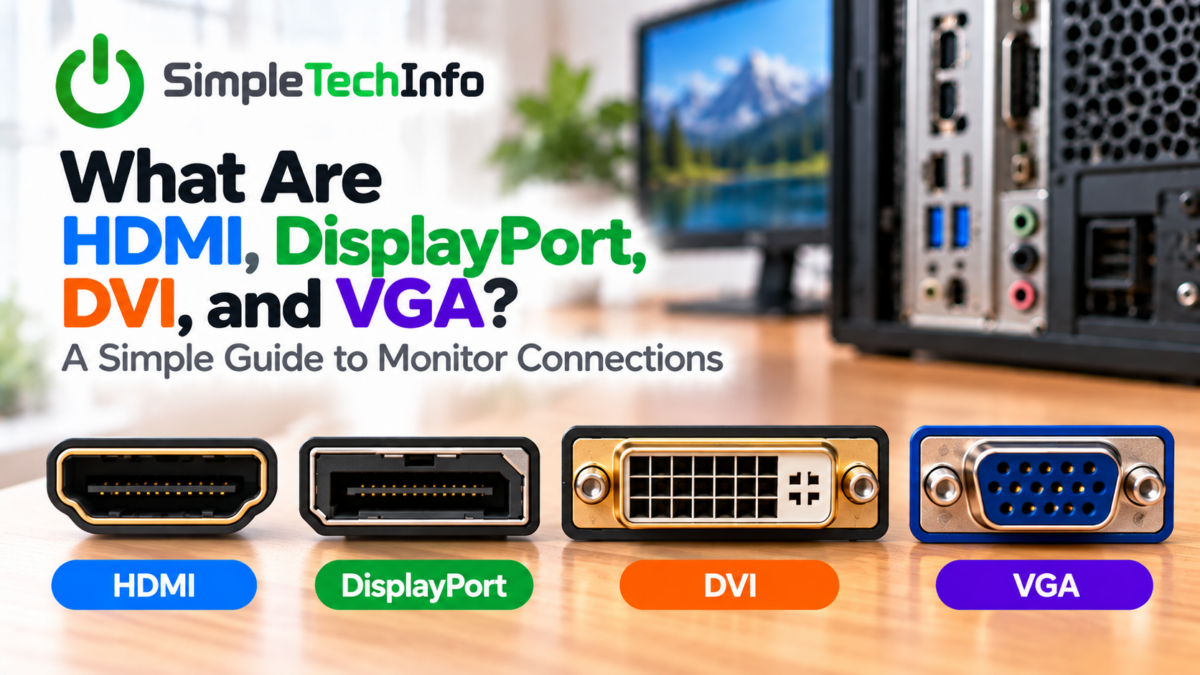
An HDMI connector is relatively small and has a distinctive shape with angled lower corners.
Does HDMI Carry Audio?
Yes.
HDMI can carry both video and audio through the same cable.
That’s one reason it’s so commonly used with televisions.
If you connect a computer to a TV using HDMI, for example, you can usually send both the picture and sound through that single cable.
When Should I Use HDMI?
HDMI is a great choice for most everyday situations.
If your computer and monitor both have HDMI ports and you simply need a reliable display connection, there’s usually nothing wrong with using HDMI.
It’s especially convenient when connecting a computer to a television.
DisplayPort
DisplayPort is another modern digital connection commonly found on desktop computers, graphics cards, and computer monitors.
It looks somewhat similar to HDMI, but a standard DisplayPort connector usually has one corner cut at an angle.
DisplayPort is particularly common on:
- Desktop computers
- Dedicated graphics cards
- Gaming monitors
- Business monitors
- High-resolution displays
Does DisplayPort Carry Audio?
Yes.
Like HDMI, DisplayPort can carry both video and audio.
Whether audio actually comes through your monitor depends on whether the monitor has built-in speakers or an audio output.
When Should I Use DisplayPort?
DisplayPort is an excellent option for a desktop computer and monitor.
It’s particularly popular for gaming monitors and other displays that support high resolutions and refresh rates.
If both your graphics card and monitor have DisplayPort connections, it’s often a very good choice.
Some DisplayPort connectors also have a small locking mechanism. If your cable doesn’t come out easily, check for a release button before pulling harder.
DVI
DVI, or Digital Visual Interface, is an older display connection that was extremely common on desktop computers and monitors.
DVI connectors are much larger than HDMI or DisplayPort and contain a grid of small pins.
You may still find DVI on:
- Older desktop computers
- Older graphics cards
- Older LCD monitors
There are several versions of DVI, so not every DVI connector looks exactly the same.
Does DVI Carry Audio?
Typically, you should think of DVI as a video connection.
Unlike HDMI and DisplayPort, DVI was primarily designed for transmitting video.
If you need sound, you’ll generally need a separate audio connection.
Should I Still Use DVI?
If your computer and monitor already use DVI and everything works, you don’t necessarily need to replace it.
For a new setup, however, HDMI or DisplayPort will usually be the more practical choice when they’re available.
VGA
VGA, or Video Graphics Array, is the oldest of these four connections.
VGA connectors are usually blue, although they can come in other colors, and contain 15 small pin holes arranged in three rows.
The connector also typically has two screws that secure the cable to the computer or monitor.
VGA was extremely common on older computers, projectors, and monitors.
Does VGA Carry Audio?
No.
VGA carries video only.
If you need sound, you’ll need a separate audio cable.
How Is VGA Different From the Others?
The biggest difference is that VGA sends an analog video signal.
HDMI and DisplayPort are digital connections, while most DVI connections you’ll encounter are also digital.
Because VGA is an older analog technology, image quality can become more susceptible to degradation, particularly at higher resolutions or over poor-quality cables.
If HDMI or DisplayPort is available, you’ll generally want to use one of those instead.
HDMI vs. DisplayPort vs. DVI vs. VGA
Here’s a simple comparison:
| Connection | Video | Audio | Type | Common Today? |
|---|---|---|---|---|
| HDMI | Yes | Yes | Digital | Very common |
| DisplayPort | Yes | Yes | Digital | Very common |
| DVI | Yes | Usually no | Primarily digital* | Mostly older equipment |
| VGA | Yes | No | Analog | Legacy equipment |
*Some versions of DVI can support analog signals as well, which is one reason you’ll encounter different-looking DVI connectors.
For most people, the easiest rule is:
Use HDMI or DisplayPort when possible.
DVI is perfectly usable for older equipment, while VGA is generally best reserved for situations where newer connections aren’t available.
Which Connection Should I Use for My Monitor?
If your computer and monitor have several options, you may be wondering which one to choose.
For a typical modern computer:
DisplayPort — Excellent choice for desktop monitors, particularly gaming and high-refresh-rate displays.
HDMI — Excellent general-purpose choice and particularly useful for TVs.
DVI — Fine for older monitors and computers when HDMI or DisplayPort isn’t available.
VGA — Use primarily for older equipment that doesn’t offer a newer connection.
You don’t need to use every port on your computer. You only need one appropriate connection between the computer and each monitor.
Can I Use an Adapter?
Yes, but there’s an important catch.
Adapters can often convert between different display connections.
For example, you may encounter:
- DisplayPort to HDMI
- USB-C to HDMI
- HDMI to DVI
- DisplayPort to DVI
- HDMI to VGA
However, not every adapter works in both directions.
For example, an adapter designed to send a DisplayPort signal from a computer to an HDMI monitor isn’t necessarily capable of sending an HDMI signal from a computer to a DisplayPort monitor.
This becomes particularly important when converting between digital connections and older analog VGA equipment.
When buying an adapter, check that it specifically supports the direction you need:
Computer output → Monitor input
Where Should I Plug My Monitor Into a Desktop PC?
There’s another common source of confusion.
Some desktop computers have display connections in two different locations.
You may see HDMI or DisplayPort connections near the USB and Ethernet ports on the motherboard.
You may also see another set of display connections lower down on the back of the computer.
Those lower connections usually belong to a dedicated graphics card.
If your computer has a dedicated graphics card, you will generally want to connect your monitor directly to the graphics card.
Plugging the monitor into the motherboard instead can sometimes result in a “No Signal” message or prevent you from using the dedicated graphics card.
Why Does My Monitor Say “No Signal”?
A monitor displaying “No Signal” usually means it’s powered on but isn’t receiving a usable video signal from the computer.
Check:
- The cable at both ends
- The monitor’s selected input
- The port you’re using on the computer
- Whether the computer is actually running
- Whether you’re connected to the graphics card
You can also try another cable or another video port.
If you’re still having trouble, follow a full monitor troubleshooting process rather than immediately assuming the monitor has failed.
How Can I Tell Which Port I Have?
Look at the shape of the connector.
HDMI: Small with angled lower corners.
DisplayPort: Rectangular with one angled corner.
DVI: Large connector with many small pins.
VGA: Usually blue with 15 pin holes arranged in three rows.
Don’t force a cable into a port if it doesn’t fit easily. Similar-looking connectors can still be completely different.
The Bottom Line
HDMI, DisplayPort, DVI, and VGA all serve the same basic purpose: getting an image from your computer to your display.
For most modern computers, your main choices will be HDMI and DisplayPort.
Both can carry high-quality digital video and audio and are widely supported by modern equipment.
DVI is mostly found on older computers and monitors, while VGA is an even older analog connection that’s gradually disappearing from modern hardware.
If you’re simply trying to connect a modern desktop computer to a monitor, start by checking whether both devices have HDMI or DisplayPort. In most cases, one of those will be the simplest solution.