

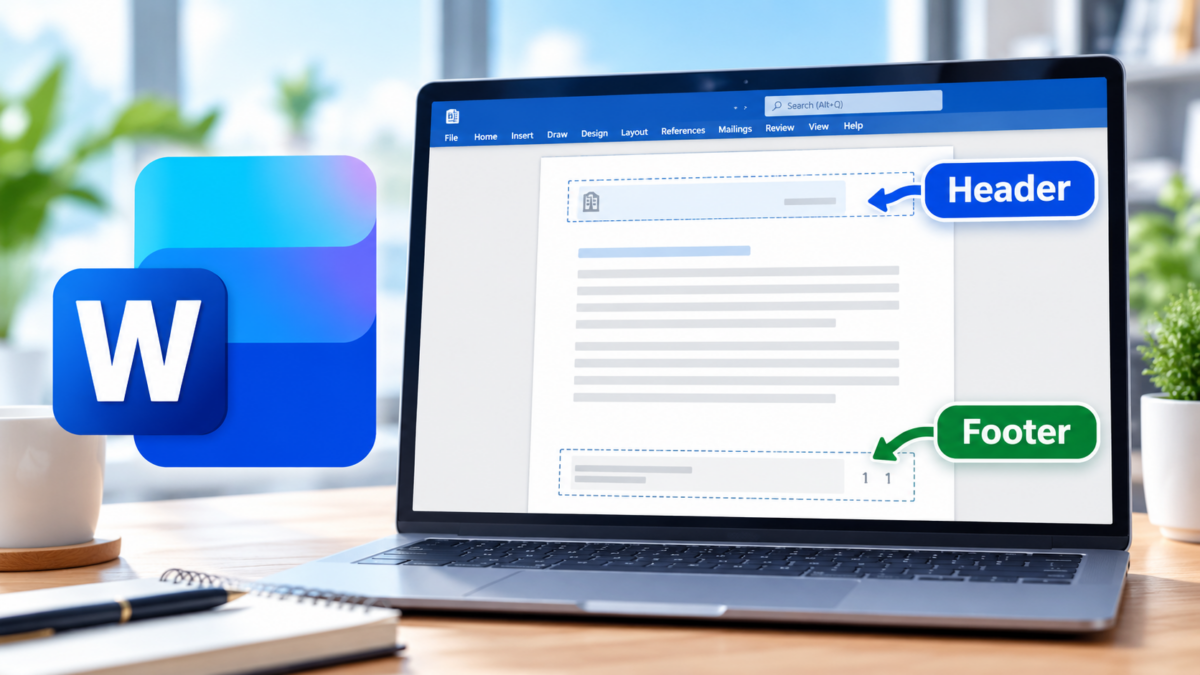
Headers and footers are an easy way to make a Microsoft Word document look more polished and professional.
They can be used to display information that should appear on every page, such as:
- Company names
- Document titles
- Department names
- Confidentiality notices
- Dates
- Section names
- Page numbers
For business documents such as reports, proposals, procedures, meeting packets, and policy manuals, headers and footers also make longer documents easier to navigate.
This guide walks through how to add them, format them, add page numbers, and use different headers for different sections.
A header is an area at the top of each page.
A footer is an area at the bottom.
Anything placed in one of these areas can automatically repeat across multiple pages, so you don’t need to manually type the same information again and again.
For example, a business report might use:
Header:
Quarterly Operations Report
Footer:
ABC Company | Confidential | Page 3 of 18
How to Add a Header in Word
To add a header:
- Open your document in Microsoft Word.
- Click the Insert tab.
- Select Header.
- Choose one of Word’s built-in header styles or select Edit Header.
- Type the information you want to appear.
You can also quickly open the header by double-clicking near the top edge of the page.
Once the header area is open, Word displays additional header and footer options.
Adding a footer works almost the same way.
- Click the Insert tab.
- Select Footer.
- Choose a built-in style or select Edit Footer.
- Enter the information you want.
You can also double-click near the bottom of the page to open the footer directly.
What Should Go in a Business Header?
For business use, a header should usually stay simple.
Common choices include:
- Document title
- Company or department name
- Client name
- Project name
- Report period
- Section title
- Document classification
For example:
North Region Sales Report | Q3 2026
Or:
Human Resources | Employee Handbook
Avoid putting too much information in the header. A crowded header can make the page feel busy and distract from the main document.
Footers are useful for information that should be present but doesn’t need to compete with the document itself.
Common footer items include:
- Page number
- Company name
- Confidentiality statement
- File version
- Revision date
- Website address
- Document owner
For example:
SimpleTechInfo Consulting | Internal Use Only | Page 4
Headers and footers can be formatted just like regular Word text.
You can change:
- Font
- Font size
- Bold or italic formatting
- Text color
- Alignment
- Line spacing
- Borders
- Tabs
For most business documents, keep the formatting subtle.
A good rule is to use the same font family as the main document, but make the header or footer slightly smaller.
For example:
Body text: 11 pt
Header/Footer: 9 or 10 pt
Using gray instead of solid black can also make the header or footer less visually dominant.
How to Add Page Numbers
Page numbers are one of the most common footer elements in business documents.
To add them:
- Click Insert.
- Select Page Number.
- Choose where you want the page number to appear.
- Select a style.
Common choices include:
- Top of Page
- Bottom of Page
- Page Margins
- Current Position
For business reports, page numbers usually work best in the footer.
How to Add “Page X of Y”
For longer reports, you may want page numbers to show both the current page and total number of pages.
For example:
Page 3 of 14
One easy way is to use a built-in page number style that includes both values.
If you don’t see one you like, you can also build it manually using Word fields.
You can type:
Page
Then insert the current page number field.
Then type:
of
Then insert the total number of pages field.
This produces something like:
Page 3 of 14
How to Start Page Numbers on a Later Page
Business documents often have a cover page that should not display a page number.
Word can handle this in several ways.
For a simple document, use:
Different First Page
To enable it:
- Double-click the header or footer.
- Look for the Different First Page option.
- Turn it on.
The first page can now have a different header or footer than the rest of the document.
This is useful for:
- Cover pages
- Title pages
- Executive summaries
- Formal proposals
Using Different Headers for Different Sections
Long business documents often need different headers in different parts of the file.
For example, a policy manual might contain:
- Section 1: Human Resources
- Section 2: Finance
- Section 3: Information Technology
Instead of using the same header throughout the entire document, you can make each section display its own title.
To do this, you need to use section breaks.
How to Insert a Section Break
Place your cursor where the new section should begin.
Then:
- Click the Layout tab.
- Select Breaks.
- Under Section Breaks, choose Next Page.
Word will begin a new section on the next page.
You can now give that section a different header or footer.
How to Use a Different Header in Each Section
After inserting a section break:
- Double-click the header in the new section.
- Look for Link to Previous.
- Turn Link to Previous off.
- Edit the header.
The new section can now have its own header without changing the earlier section.
This is especially useful for:
- Large reports
- Procedure manuals
- Employee handbooks
- Training documents
- Client proposals
- Multi-department documents
For example:
Section 1 Header:
Human Resources Policies
Section 2 Header:
Information Technology Policies
Section 3 Header:
Finance Procedures
Why “Link to Previous” Matters
This is one of the most important header and footer settings in Word.
By default, a new section may inherit the header and footer from the section before it.
If you change the header without first turning off Link to Previous, you may accidentally change the header in earlier sections too.
If you’re trying to create different section headers, always check this setting first.
Can the Header Change Automatically With the Section Title?
Yes.
For more advanced business documents, Word can automatically display the current section title in the header using heading styles and fields.
For example, if your document uses:
Heading 1: Finance
then the header can automatically display:
Finance
When the next Heading 1 changes to:
Human Resources
the header can update automatically.
This is useful for long manuals or reports that have many sections.
One common method uses Word’s StyleRef field.
It allows Word to pull text from a heading style and place it in the header.
This setup takes a little more work, but it can save time in documents that are updated frequently.
How to Use Different Headers on Odd and Even Pages
Some professionally printed documents use different headers on left and right pages.
For example:
Even pages: Company name
Odd pages: Chapter or section title
To enable this:
- Double-click the header.
- Turn on Different Odd & Even Pages.
- Edit each header separately.
This is more common in books, manuals, and printed reports than in ordinary office documents.
To remove one:
- Click Insert.
- Choose Header or Footer.
- Select Remove Header or Remove Footer.
You can also open the header or footer and delete the contents manually.
Best Practices for Business Documents
When creating headers and footers, keep these guidelines in mind:
- Keep the design simple.
- Use smaller text than the main document.
- Use page numbers on documents longer than a few pages.
- Use section-specific headers for long reports or manuals.
- Avoid putting too much information in one area.
- Keep formatting consistent throughout the document.
- Use section breaks instead of manually changing every page.
- Use Different First Page for professional cover pages.
The Bottom Line
Headers and footers are a simple way to make Microsoft Word documents look more professional and easier to navigate.
For most business documents, a good setup includes:
Header: document or section title
Footer: company name, confidentiality notice, and page number
For longer reports, policies, or manuals, section breaks let you create different headers for different parts of the document.
Once you understand section breaks, Link to Previous, and page numbering, you’ll be able to format even large Word documents much more cleanly.
If you want some tips on troubleshooting your headers and footers, check our guide on common troubleshooting tips here!