

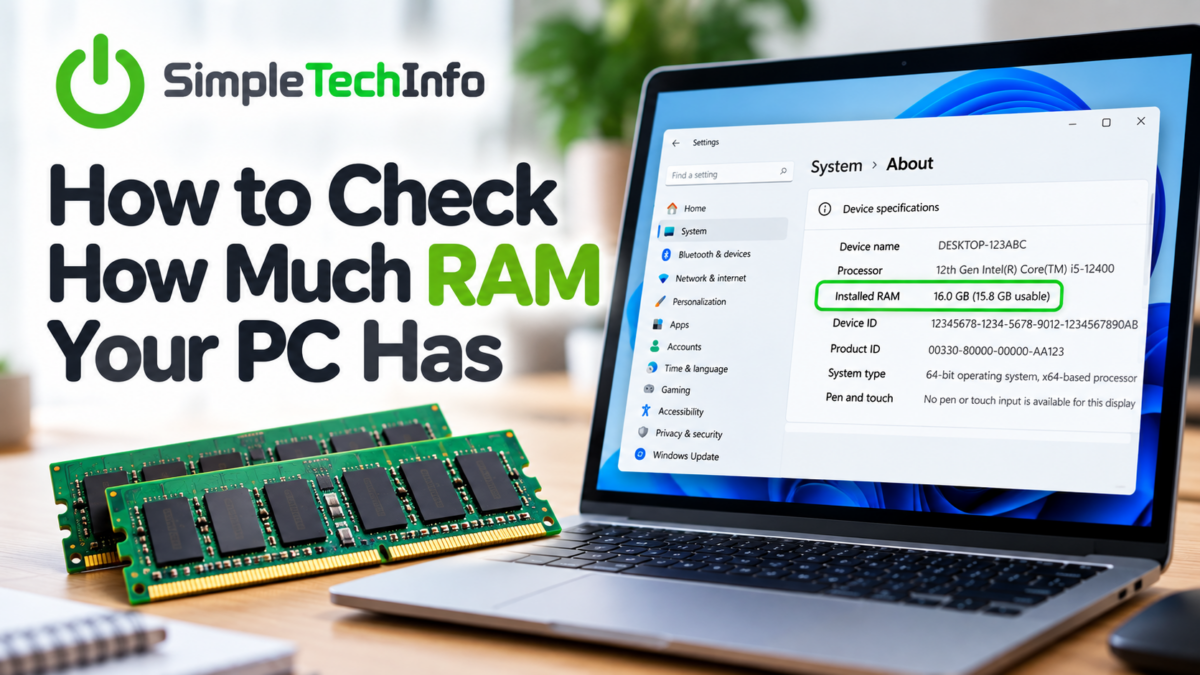
Wondering how much RAM your Windows PC has? Whether you’re trying to figure out why your computer is running slowly or checking whether your PC can handle a new program, finding your RAM is quick and easy.
Windows gives you several ways to check. Here are the easiest methods.
What Is RAM?
RAM, or Random Access Memory, is the short-term memory your computer uses while programs are running.
More RAM allows your computer to handle more programs and tasks at the same time. If your PC doesn’t have enough RAM, you may notice programs running slowly or your computer becoming sluggish when you have several things open.
Don’t confuse RAM with your computer’s storage. Your SSD or hard drive stores your files, while RAM is used by Windows and your programs while they’re running.
Method 1: Check RAM in Windows Settings
The easiest way to check your RAM is through Windows Settings.
- Click the Start button.
- Select Settings.
- Click System.
- Scroll down and select About.
- Look for Installed RAM under Device specifications.
You’ll see a number such as:
Installed RAM: 8.00 GB
That means your computer has 8 GB of RAM installed.
You may see a slightly smaller amount available for Windows to use. This is normal because some memory may be reserved for hardware, such as your computer’s graphics system.
Method 2: Use Task Manager
Task Manager gives you more information about your RAM, including how much is currently being used.
- Right-click the Start button.
- Select Task Manager.
- Click Performance.
- Select Memory.
You’ll see information including:
- Total RAM installed
- RAM currently being used
- Available RAM
- RAM speed
- Number of memory slots being used
- How much RAM is reserved for hardware
For example, if Task Manager shows 8.0 GB at the top and you’re currently using 5.2 GB, your computer has 8 GB installed and is currently using about 5.2 GB.
Method 3: Check RAM Using System Information
Windows also has a built-in System Information tool that provides additional details about your computer.
Press Windows + R on your keyboard.
Type:
msinfo32
Then press Enter.
Look for Installed Physical Memory (RAM).
This will show you how much physical RAM is installed in your computer.
How Much RAM Do You Need?
How much RAM you need depends on what you use your computer for.
4 GB RAM
4 GB is generally considered a very small amount of RAM for a modern Windows PC. You may experience slowdowns when running multiple programs.
8 GB RAM
8 GB can be sufficient for basic everyday tasks such as web browsing, email, Microsoft Office, and light computer use.
16 GB RAM
16 GB provides more breathing room for multitasking and is a common choice for modern computers. It’s useful if you regularly have many browser tabs and applications open at the same time.
32 GB or More
32 GB or more is generally useful for demanding workloads such as video editing, professional applications, virtual machines, or certain gaming setups.
More RAM isn’t automatically better, though. If your computer only uses a small amount of memory during your normal activities, adding more RAM may not noticeably improve performance.
How Do I Know If I Need More RAM?
Checking the amount of installed RAM is only part of the picture. You should also look at how much RAM your computer is actually using.
Open Task Manager → Performance → Memory while you’re using your computer normally.
If your memory usage is consistently very high when you’re doing everyday tasks, your PC may benefit from having more RAM.
For example, if you’re regularly using 90–95% of your available memory while simply browsing the web and using a few applications, upgrading your RAM could help.
However, slow performance isn’t always caused by a lack of RAM. A slow hard drive, too many startup programs, an aging processor, overheating, or other problems can also make a computer feel slow. Check our guides on upgrading your hard drive and options for helping Windows start faster for more information.
The Bottom Line
Checking your RAM is easy and doesn’t require installing any additional software.
For the quickest check, go to:
Settings → System → About
For more detailed information, open:
Task Manager → Performance → Memory
If you’re trying to determine whether your computer needs an upgrade, don’t just look at how much RAM is installed. Check how much memory you’re actually using during your normal everyday activities.