

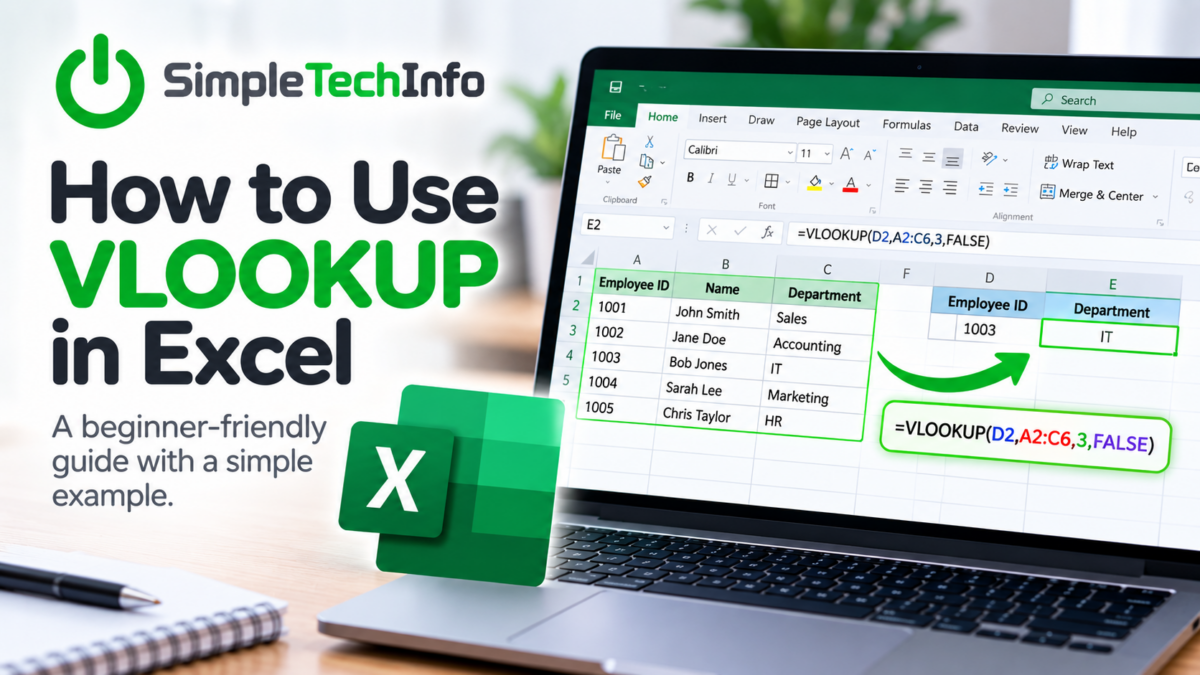
If you need to find information in one Excel table and bring it into another, VLOOKUP can save you a lot of time.
VLOOKUP is commonly used to match information between lists. For example, you might have a list of employee IDs and want Excel to automatically find each employee’s department from another table.
It sounds complicated, but once you understand the basic formula, it’s surprisingly simple.
What Does VLOOKUP Do?
VLOOKUP searches for a value in the first column of a table and returns related information from another column in the same row.
For example, imagine you have this table:
| Employee ID | Name | Department |
|---|---|---|
| 1001 | John Smith | Sales |
| 1002 | Jane Doe | Accounting |
| 1003 | Bob Jones | IT |
If you have an employee ID of 1002 and want Excel to tell you that employee’s department, VLOOKUP can find 1002 and return Accounting.
The Basic VLOOKUP Formula
A VLOOKUP formula looks like this:
=VLOOKUP(lookup_value, table_array, col_index_num, FALSE)Don’t let that scare you. Each part has a simple purpose:
“lookup_value” is what you’re looking for. In our example, that’s the employee ID: 1002
“table_array” is the range of cells containing the information you want Excel to search such as A2:C4
“col_index_num” tells Excel which column to return information from.
In our example:
- Column A = Employee ID
- Column B = Name
- Column C = Department
If we want the department, we’d use 3.
The final section, “FALSE” , tells Excel that we want an exact match.
For most basic VLOOKUPs, you’ll want to use FALSE.
A Simple VLOOKUP Example
Let’s say your employee ID is in cell E2 and your employee information is in cells A2:C4.
You could use:
=VLOOKUP(E2,A2:C4,3,FALSE)
Excel will:
- Take the employee ID from E2.
- Search for it in the first column of A2:C4.
- Find the matching employee.
- Move to the third column.
- Return the department.
If E2 contains 1002, the result would be:
Accounting
That’s the basic idea behind VLOOKUP.
How to Create a VLOOKUP Step by Step
Let’s walk through it as if you’re doing this in Excel yourself.
Step 1: Identify What You Want to Find
First, determine what information exists in both lists.
In our example, that’s the Employee ID.
The value you’re searching for needs to be in the first column of the table you’re looking up.
Step 2: Start Your Formula
Type:
=VLOOKUP(
Then click the cell containing the value you’re looking for or type in the cell address.
For example:
=VLOOKUP(E2,
Step 3: Select Your Lookup Table
Select the entire table containing the information you want to find.
For example:
A2:C4
Your formula should now look like:
=VLOOKUP(E2,A2:C4,
Step 5: Tell Excel Which Column to Return
Our Department information is in the third column of the selected range.
Enter:
3
Your formula is now:
=VLOOKUP(E2,A2:C4,3,
Step 6: Select Exact Match
Enter:
FALSE
Then close the parentheses.
Your finished formula is:
=VLOOKUP(E2,A2:C4,3,FALSE)
Press Enter.
Excel should return the matching department.
Should You Use TRUE or FALSE?
For most everyday VLOOKUP situations, FALSE is the safer choice because it tells Excel to find an exact match.
FALSE = Exact match
TRUE = Approximate match
Unless you specifically need an approximate match and understand how it works, use FALSE.
A Useful VLOOKUP Tip
If you’re going to copy your VLOOKUP formula down a long list, you may want to lock the table range so it doesn’t move.
For example:
=VLOOKUP(E2,$A$2:$C$100,3,FALSE)
The dollar signs tell Excel to keep the lookup table in the same location when you copy the formula to other cells.
You can also select the range and press F4 to add the dollar signs automatically.
The Bottom Line
VLOOKUP is a great way to automatically find information in an Excel table instead of manually searching through rows.
The basic formula to remember is:
=VLOOKUP(what you're looking for,where you're looking,which column to return,FALSE)
Once you understand those four pieces, you can use VLOOKUP for everything from matching employee information to comparing product lists and combining data from different spreadsheets.