

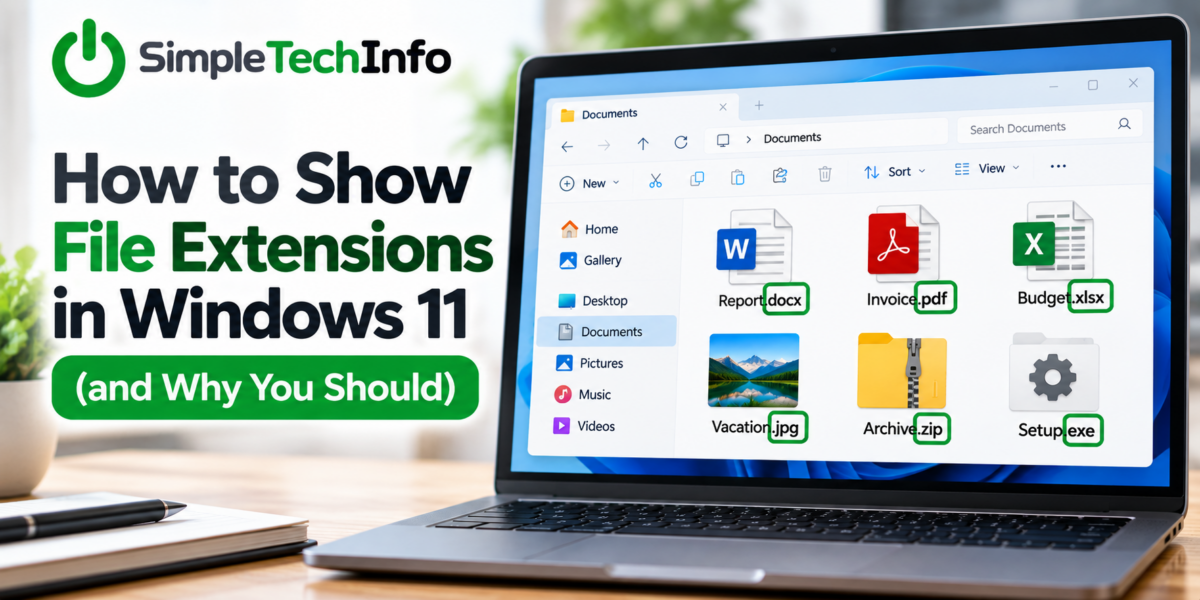
Windows 11 normally hides the file extensions at the end of many file names. That means a file named Vacation.jpg might simply appear as Vacation, while Report.pdf may appear as Report.
File extensions tell you what type of file you’re looking at and can help you understand which program will open it. Showing them can also make it easier to spot suspicious files.
Fortunately, turning on file extensions in Windows 11 only takes a few seconds.
What Is a File Extension?
A file extension is the group of letters that appears after the period at the end of a file name.
For example:
Vacation.jpg— JPG imageReport.pdf— PDF documentBudget.xlsx— Microsoft Excel spreadsheetLetter.docx— Microsoft Word documentArchive.zip— ZIP compressed folderSetup.exe— Windows executable program
The extension helps Windows determine what type of file it is and which program should open it. If you are having problems with Windows opening files in the wrong program, check this article for help on setting default apps for specific file types!
Windows often hides these extensions by default, so you may not see them unless you change a setting.
How to Show File Extensions in Windows 11
The easiest way to show file extensions is through File Explorer.
Step 1: Open File Explorer
Click the File Explorer icon on your taskbar.
You can also press Windows + E on your keyboard.
At the top of the File Explorer window, click View.
Step 3: Select Show
Move your mouse over Show to open another menu.
Step 4: Turn On File Name Extensions
Click File name extensions.
A checkmark should appear next to the option.
That’s it.
File Explorer should now display the extension at the end of your file names.
For example:
Before:
Vacation
After:
Vacation.jpg
This setting applies throughout File Explorer, so you don’t need to turn it on separately for every folder.
Why Should You Show File Extensions?
For many users, displaying file extensions makes working with files easier.
You Can Quickly Identify File Types
Two files can have similar names but be completely different types of files.
For example:
Invoice.pdf
and
Invoice.docx
The first is a PDF, while the second is a Microsoft Word document.
Seeing the extension immediately tells you what kind of file you’re working with.
It Can Help You Spot Suspicious Files
Showing extensions can also help you recognize potentially dangerous files.
For example, you might receive a file that appears to be named:
Invoice.pdf
But its full name could actually be:
Invoice.pdf.exe
The .exe extension means the file is a Windows executable program — not a PDF.
That doesn’t automatically mean the file is malicious, but an unexpected executable file should be treated cautiously.
If you don’t recognize a file or weren’t expecting it, avoid opening it until you know where it came from.
Troubleshooting File Problems Is Easier
File extensions are also useful when troubleshooting.
If a file won’t open, knowing whether it is a .pdf, .docx, .xlsx, .jpg, or another format can help determine which program you need.
It’s also much easier to search for help when you know the actual file type.
Common File Extensions You Might See
Here are some common extensions you’ll encounter in Windows:
| Extension | File Type | Commonly Used For |
|---|---|---|
.docx | Word document | Letters, reports and documents |
.xlsx | Excel workbook | Spreadsheets |
.pptx | PowerPoint presentation | Slides and presentations |
.pdf | PDF document | Forms, manuals and documents |
.jpg / .jpeg | Image | Photos and pictures |
.png | Image | Pictures, screenshots and graphics |
.txt | Text file | Plain text |
.zip | Compressed folder | Bundling or compressing files |
.mp3 | Audio file | Music and audio |
.mp4 | Video file | Videos |
.exe | Executable file | Windows programs and installers |
There are thousands of different file extensions, so don’t worry if you encounter one you don’t recognize.
Can I Change a File Type by Renaming the Extension?
Usually, no.
For example, changing:
picture.jpg
to:
picture.pdf
doesn’t actually convert the image into a PDF.
You’re only changing the file’s name. The information inside the file is still formatted as an image.
In fact, changing an extension manually can cause Windows or other programs to stop recognizing the file correctly.
If you need to convert a file from one format to another, use a program that supports converting or exporting to the format you need.
Why Did Windows Warn Me About Changing a File Extension?
Once file extensions are visible, Windows may display a warning if you try to rename the extension.
You may see a message explaining that changing the file name extension could make the file unusable.
This is normal.
If you’re simply renaming a file, make sure you leave the extension alone.
For example, you can safely change:
Vacation.jpg
to:
Beach Vacation.jpg
But you generally shouldn’t change:
Vacation.jpg
to:
Vacation.png
unless you specifically know what you’re doing.
How to Hide File Extensions Again
If you decide you don’t want to see extensions anymore, you can easily turn them off.
Open File Explorer, then go to:
View → Show → File name extensions
Click File name extensions again to remove the checkmark.
Windows will return to hiding extensions for recognized file types.
Should You Leave File Extensions Turned On?
For most users, there’s no downside to leaving file extensions visible.
They make it easier to understand what types of files are stored on your computer, can help when troubleshooting file problems, and provide another clue when deciding whether an unfamiliar file is safe to open.
The file names may look slightly longer, but the additional information is often worth it.
Bottom Line
To show file extensions in Windows 11, open File Explorer and select:
View → Show → File name extensions
Once enabled, you’ll see endings such as .jpg, .pdf, .docx, and .exe after your file names.
It’s a small Windows setting, but it’s one that can make managing and troubleshooting files much easier — especially if you’re still learning your way around Windows.