

Have you ever double-clicked a file only for Windows to open it in the wrong program?
Maybe your PDFs keep opening in Microsoft Edge when you’d rather use Adobe Acrobat. Or perhaps you installed a new photo viewer or web browser, but Windows continues using the old one.
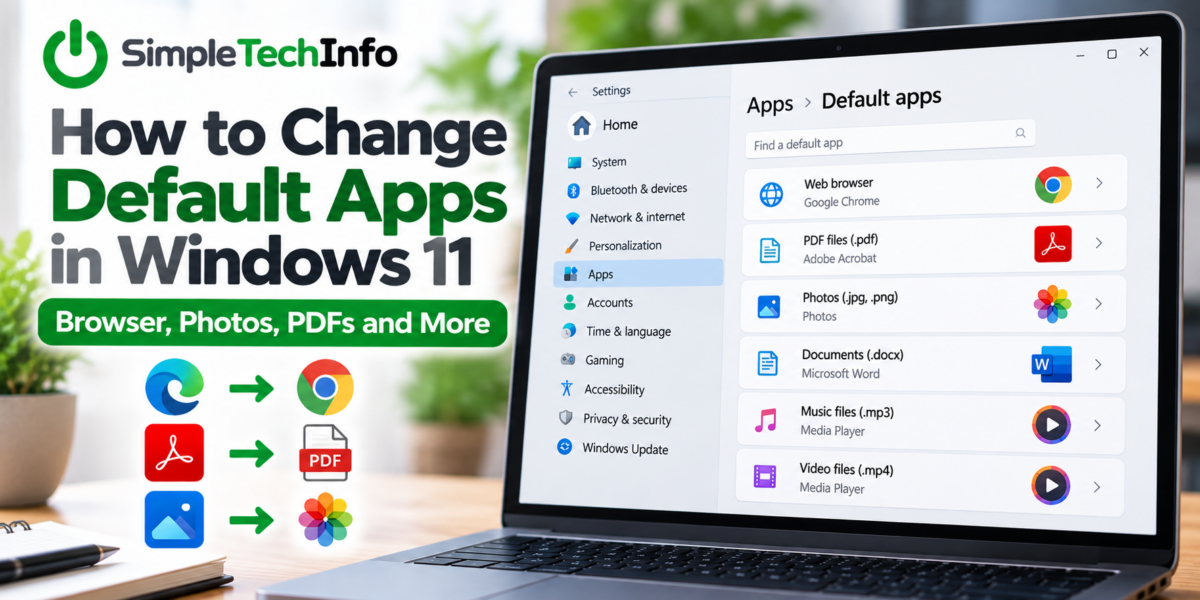
Windows 11 lets you choose which apps automatically open different types of files and links. These are called default apps.
Here’s how to change them.
What Is a Default App?
A default app is the program Windows automatically uses when you open a particular type of file or link.
For example, Windows might use:
- Microsoft Edge for web links
- Photos for JPG and PNG images
- Media Player for certain music and video files
- Microsoft Edge or Adobe Acrobat for PDF files
- Microsoft Word for DOCX documents
Installing another program doesn’t always mean Windows will automatically start using it.
If Windows keeps opening something in an app you don’t want, you may need to change the default.
How to Change Default Apps in Windows 11
You can manage your default apps through Windows Settings.
Step 1: Open Settings
Click the Start button and select Settings.
You can also press:
Windows + I
to open Settings directly.
Step 2: Open Default Apps
In Settings, select:
Apps → Default apps
You’ll see a search box along with a list of apps installed on your computer.
From here, Windows gives you several ways to change your defaults.
Change the Default App for a File Type
One of the most useful options is choosing which program should open a particular type of file.
For example, you might want to change which program opens PDF files.
Open:
Settings → Apps → Default apps
Use the search box to search for the file type you want to change.
For a PDF, search for:
.pdf
Windows will show the app currently associated with that file type.
Select the current app, choose the program you’d rather use, and confirm the change.
The next time you double-click a PDF, Windows should automatically open it with your new default program.
You can use the same process for many other file types, including:
.jpgand.pngfor images.mp3for music.mp4for videos.txtfor text files.pdffor PDF documents
Not sure what the letters after a file name mean? Check out our guide on How to Show File Extensions in Windows 11 to learn how Windows identifies different types of files.
Change the Default App by Program
You can also select an app and see all the file types it can currently open.
Go to:
Settings → Apps → Default apps
Then search for an application, such as your web browser or PDF reader.
Select the app.
Windows will display the file types and link types associated with that program.
You can then select individual entries and choose which app should handle them.
This can be useful if you’ve installed a new program and want to see exactly what Windows is using it for.
How to Change Your Default Web Browser
Changing your default browser is one of the most common reasons to visit the Default Apps settings.
If you’ve installed a browser such as Google Chrome or Mozilla Firefox but links still open in Microsoft Edge, you’ll need to change your browser default.
Open:
Settings → Apps → Default apps
Search for the browser you want to use.
Select it and look for the option to make it your default browser.
Depending on your version of Windows 11 and the browser you’re using, you may see a Set default button near the top of the page.
After changing the setting, links you click in applications should normally open in your preferred browser.
How to Change the Default PDF Viewer
PDF files are another common source of confusion.
For example, you may have Adobe Acrobat installed but notice that PDFs continue opening in Microsoft Edge.
To change this, go to:
Settings → Apps → Default apps
Search for:
.pdf
Select the app currently associated with PDF files and choose the PDF reader you’d rather use.
After making the change, double-click a PDF to test it.
How to Change the Default Photo Viewer
You can use the same process to change which program opens your pictures.
Common image formats include:
.jpg
.jpeg
.png
You may need to change more than one extension if you want all of your images to open in the same program.
For example, changing the default for .jpg doesn’t necessarily mean .png files will use the same app.
Check each image format you regularly use.
An Easier Way: Use “Open With”
If you already have the file in front of you, there’s another convenient way to change its default app.
Right-click the file and select:
Open with → Choose another app
Select the program you want to use.
Depending on your version of Windows 11, you may also see an option such as Always that tells Windows to use that program whenever you open this type of file.
If you only want to use the program once, choose the option that opens the file without permanently changing the default.
This method is especially handy when you’re dealing with one particular type of file and don’t want to search through Settings.
What If the App I Want Isn’t Listed?
If the program you want doesn’t appear as an option, first make sure it’s actually installed on your computer.
If it is installed, Windows may give you an option to browse for another app on your PC.
Be careful when selecting programs manually. Unless you know where the program is installed and which executable file it uses, it’s usually easier to change the setting from the application itself or reinstall the program if something isn’t working correctly.
Why Did My Default App Change?
Sometimes a file suddenly starts opening in a different program even though you don’t remember changing anything.
There are several possible reasons.
You Installed a New Program
Some applications may ask whether you want to make them the default during installation or when you first open them.
It’s easy to accept this without realizing what changed.
An App Was Removed
If you uninstall the program that normally opens a certain file type, Windows will need another application to take its place.
An App Asked to Become the Default
Web browsers, PDF readers, media players and similar programs may occasionally prompt you to make them your default.
Always read these prompts before accepting them.
Windows or an Application Was Updated
Updates can occasionally affect file associations or prompt you to review your default apps.
If something suddenly starts opening in the wrong program, checking Default apps is a good first troubleshooting step.
Changing a Default App Does Not Change the File
Changing which program opens a file does not convert or modify the file itself.
For example, changing your default PDF viewer from Microsoft Edge to Adobe Acrobat doesn’t change your PDF documents.
You’re simply telling Windows:
“When I open this type of file, use this program.”
Your files stay the same.
Can Different File Types Use Different Apps?
Yes.
Windows allows you to choose defaults individually.
You could use:
- Adobe Acrobat for
.pdffiles - Microsoft Word for
.docxfiles - Photos for
.jpgfiles - Another image editor for
.pngfiles - Chrome or Firefox for web links
You don’t have to use one program for everything.
In fact, choosing defaults by file type gives you much more control over how Windows behaves. And if you are having trouble seeing the extension for your files, check this article for help on displaying file extensions in file explorer.
Quick Troubleshooting Checklist
If a file keeps opening in the wrong program:
- Open Settings.
- Select Apps → Default apps.
- Search for the file extension or application.
- Check which program is currently set as the default.
- Select your preferred program.
- Open the file again to test the change.
If you’re not sure what type of file you’re working with, turn on file extensions in File Explorer so you can see endings such as .pdf, .jpg, .docx, and .xlsx.
Bottom Line
If Windows 11 keeps opening files or links in a program you don’t want, you usually don’t need to uninstall anything.
Start by going to:
Settings → Apps → Default apps
From there, you can choose which apps open your PDFs, photos, music, videos, web links and other files.
Once you understand how default apps work, fixing the dreaded “Why does Windows keep opening this in the wrong program?” problem only takes a few minutes.